Introduction
Digi Remote Manager (DRM) provides a REST API that allows you to query cellular performance metrics for any enrolled Digi device. Using this API, you can retrieve current signal snapshots across your entire fleet, as well as detailed time-series telemetry including Signal Quality, Signal Strength, RSSI, RSRP, RSRQ, and cell-level identifiers (specifically the E-UTRAN Cell Identifier (ECI) for LTE connections and the NR Cell Identity (NCI) for 5G NR connections).
This article covers two complementary approaches: a single API call to retrieve the current signal snapshot for all devices at once, and a per-device stream history API for retrieving detailed historical telemetry data.
Prerequisites
Before using the APIs described in this article, confirm the following:
- You have an active Digi Remote Manager account with at least one cellular device enrolled.
- You have valid DRM credentials (username and password, or a DRM API key) for HTTPS Basic Authentication.
- The target device is online and connected to DRM. Historical metric data remains queryable for devices that are currently offline, provided they were connected and reporting at the time the data was collected.
Enable Device Health Metrics on Each Device
Important: Cellular metric streams — including Signal Quality, Signal Strength, and cell identity data (ECI/NCI) — are only uploaded to DRM when Device Health metrics reporting is enabled on each device. The metric streams will not exist in the API until this setting is turned on.
To enable Device Health metrics on a DAL OS device:
- Log in to the Device Web UI (or access the device Settings page via Digi Remote Manager (Note: Settings for devices which are controlled by a Template can not be changed unless the device is put into Debug mode, or the device is moved to a Group where a Template won't control the device Configuration)
- Navigate to Monitoring > Device Event Logs.
- Enable: Enable event log uploads.
- Set the Sample interval to the desired reporting frequency. Several options available ranging from 1 to 60 minutes. Shorter intervals provide higher data granularity but also increase cellular data usage.
- Save and apply the configuration.
This config settings change can also be deployed across multiple devices simultaneously, by editing this Settings area under aTemplate which controls a device, then changing the setting via Template Scan Remediation.
Firmware Version
Reporting of cell-level metric streams such as ECI and NCI depends on two separate firmware layers, both of which must be considered:
- DAL OS firmware — controls which metrics are collected from the modem and uploaded to DRM. Recent DAL OS releases added explicit support for collecting and uploading cell identity metrics. This is the primary dependency and the first thing to update.
- Cellular modem firmware — the firmware running on the modem hardware module inside the device, independently of DAL OS. The modem must itself support reporting cell identity data. If the modem firmware does not expose ECI or NCI, a DAL OS update alone will not make the stream appear.
In most cases, updating to the latest stable DAL OS release is sufficient. If the cell_id stream remains absent after a DAL OS update, the modem firmware version should be investigated as a secondary step — this is device-model-specific and may require a separate support engagement.
- Update devices to the latest stable DAL OS release first. This can be done from DRM by selecting the device and choosing Actions > Update Firmware, or programmatically via the v1/firmware_updates API.
- After updating firmware, re-run Step 1 of the procedure below to confirm the expected streams are now present.
- Firmware release notes are published at docs.digi.com. Search for your device model to find details on when specific metric streams were introduced.
Choosing the Right API for Your Use Case
DRM provides two distinct approaches for retrieving cellular signal data. The right choice depends on whether you need a current snapshot across your entire fleet, or detailed historical time-series data for specific devices and streams.
|
Use Case
|
Recommended Endpoint
|
Notes
|
|
Current signal snapshot for all devices at once
|
GET /ws/v1/devices/inventory (or /bulk)
|
Returns the most recently reported signal_strength, signal_quality, and signal_percent for every device in a single response. Best for a fleet-wide dashboard or on-demand health check.
|
|
Historical time-series for specific streams (RSRP, RSRQ, RSSI, etc.)
|
GET /ws/v1/streams/history/{deviceId}/metrics/cellular/...
|
Returns every stored datapoint for one stream on one device. Requires a separate call per stream per device. Best for deep analysis, trending, and troubleshooting.
|
|
Historical bulk export across all devices and streams
|
Paginated streams/history loop across device list
|
Combine v1/devices/inventory to get device IDs, then iterate streams/history per device. See How to Export Digi Remote Manager API Data to CSV for a ready-to-use script.
|
Retrieving Current Signal Metrics Across All Devices
If your goal is to pull signal analytics for your entire fleet in a single API call — without needing per-device historical data — the v1/devices/inventory endpoint is the most direct approach. It returns the current snapshot of signal metrics for every enrolled device in one response.
GET https://remotemanager.digi.com/ws/v1/devices/inventory?fields=id,name,carrier,network,signal_strength,signal_quality,signal_percent,signal_strength2,signal_quality2,signal_percent2&size=1000
For CSV output across the entire fleet (recommended for large fleets):
GET https://remotemanager.digi.com/ws/v1/devices/bulk?fields=id,name,carrier,network,signal_strength,signal_quality,signal_percent,signal_strength2,signal_quality2,signal_percent2
Key signal fields returned per device:
|
Field
|
Description
|
Maps To
|
|
signal_strength
|
Signal strength in dBm for the primary cellular connection. On LTE and 5G NR this is RSRP; on 2G/3G connections it is RSSI.
|
RSRP (LTE/5G NR) or RSSI (2G/3G)
|
|
signal_quality
|
Signal quality in dB for the primary cellular connection. On LTE and 5G NR this is RSRQ; on 3G it is Ec/Io.
|
RSRQ (LTE/5G NR) or Ec/Io (3G)
|
|
signal_percent
|
Primary signal strength as a percentage (0–100). Useful for normalised comparisons across mixed-technology fleets.
|
Normalised RSRP/RSSI
|
|
signal_strength2
|
Signal strength for the secondary connection (dual-SIM or dual-modem devices only).
|
RSRP (LTE/5G NR) or RSSI (2G/3G)
|
|
signal_quality2
|
Signal quality for the secondary connection (dual-SIM or dual-modem devices only).
|
RSRQ (LTE/5G NR) or Ec/Io (3G)
|
|
network
|
Active cellular technology — e.g., 4g, 5g, lte, 3g. Use this to determine whether signal_strength reflects RSRP or RSSI for a given device.
|
Technology indicator
|
Important: The signal fields in v1/devices/inventory reflect the most recently reported snapshot value — they are not real-time readings. The timestamp of the last update is available in the last_update field. For time-series history of these values, use the streams/history endpoint described in the procedure below.
Understanding RSSI, RSRP, and RSRQ in DRM
DRM does not expose RSSI, RSRP, and RSRQ as three separate top-level fields in the device inventory response. Instead they are surfaced as follows:
- RSRP (Reference Signal Received Power) — available as the signal_strength field in v1/devices/inventory for LTE and 5G NR devices, and as the metrics/cellular/{M}/sim{S}/rsrp metric stream for historical time-series data.
- RSRQ (Reference Signal Received Quality) — available as the signal_quality field in v1/devices/inventory for LTE and 5G NR devices, and as the metrics/cellular/{M}/sim{S}/rsrq metric stream for historical time-series data.
- RSSI (Received Signal Strength Indicator) — available as the signal_strength field in v1/devices/inventory for 2G and 3G devices. For LTE and 5G NR devices, signal_strength reflects RSRP rather than RSSI. There is no dedicated rssi metric stream; the signal_strength stream value reflects whichever measure the modem reports for the active technology.
Note: To determine which measure applies for a specific device, check the network field in the v1/devices/inventory response. A value of 4g, lte, or 5g indicates RSRP is being reported as signal_strength. A value of 3g, 2g, or gsm indicates RSSI is being reported.
Retrieve Cellular Performance Metrics
Follow the steps below to discover available metric streams for a device and retrieve raw historical telemetry data.
Step 1 — Discover Available Metric Streams for a Device
The metric streams available for a device vary by model, modem hardware, and firmware version. Run this call first to confirm which streams are present before querying history.
GET https://remotemanager.digi.com/ws/v1/devices/metrics/{deviceId}
Replace {deviceId} with your device's DRM identifier (format: 00000000-00000000-XXXXXXXX-XXXXXXXX). The response returns the full list of metric streams the device is currently reporting. Look for stream names that follow this pattern:
metrics/cellular/{interface}/sim{S}/{metricName}
Where {interface} is the cellular interface name as reported by the device, and S is the SIM slot number. The interface name varies by device model — common values are shown in the table below. Always use the exact interface name discovered in Step 1 rather than assuming a value.
Common interface naming conventions by device family:
• Numeric index (e.g. 1, 2) — used on some Digi device models
• WWAN interface name (e.g. wwan, wwan1) — used on TX54 and similar devices
• Other models may use different interface names entirely.
The correct name for your device will appear in the stream discovery response in Step 1. The table below lists the metric names ({metricName}) relevant to this article:
|
Stream Name (metricName)
|
Description
|
Network Type
|
|
signal_quality
|
Signal quality in dB — RSRQ for LTE/5G NR, Ec/Io for 3G
|
All
|
|
signal_strength
|
Signal strength in dBm — RSRP for LTE/5G NR, RSSI for 2G/3G
|
All
|
|
rsrp
|
Reference Signal Received Power (dBm) — dedicated RSRP stream
|
LTE / 5G NR
|
|
rsrq
|
Reference Signal Received Quality (dB) — dedicated RSRQ stream
|
LTE / 5G NR
|
|
sinr
|
Signal-to-Interference-plus-Noise Ratio (dB)
|
LTE / 5G NR
|
|
cell_id
|
Cell identifier — encodes ECI for LTE or NCI for 5G NR. Availability depends on both DAL OS firmware version and cellular modem firmware capability.
|
LTE / 5G NR
|
|
band
|
Active RF band — e.g., B4, B13, n71
|
All
|
|
carrier
|
Active carrier name
|
All
|
Note: If an expected stream such as cell_id does not appear in the response, first update the device to the latest DAL OS firmware release and re-run this step. If the stream is still absent after a DAL OS update, the cellular modem firmware may not support reporting cell identity data on that hardware. See the Firmware Version section under Prerequisites for full guidance. Also note: the interface name segment in the stream path (e.g. wwan, wwan1, 1, 2) will vary by device model — always use the exact name shown in the discovery response for subsequent API calls.
Step 2 — Retrieve Raw Historical Metric Data
Once you have confirmed the stream names available on the device in Step 1, use the streams/history endpoint to pull the raw time-series datapoints. Use the exact stream name as returned by the discovery response — including the correct interface name for your device. This endpoint returns every stored datapoint with no aggregation applied — it is the correct endpoint for maximum data granularity.
GET https://remotemanager.digi.com/ws/v1/streams/history/{deviceId}/metrics/cellular/{interface}/sim{S}/{metricName}?start_time={ISO8601}&end_time=ISO8601}&size=1000&order=asc
|
Parameter
|
Type
|
Description
|
Example
|
|
start_time
|
timestamp
|
Inclusive start time. Accepts ISO 8601, epoch in milliseconds, or a relative value such as -7d.
|
2025-01-01T00:00:00.000Z
|
|
end_time
|
timestamp
|
Exclusive end time. Accepts the same formats as start_time.
|
2025-01-08T00:00:00.000Z
|
|
size
|
integer
|
Number of datapoints returned per page. Maximum and default is 1000.
|
1000
|
|
order
|
string
|
Sort order: asc returns oldest datapoints first; desc returns newest first.
|
asc
|
|
cursor
|
string
|
Pagination cursor. Omit on the first request. On subsequent requests, pass the cursor value returned in the prior response.
|
(from prior response)
|
| |
|
|
|
|
Example — retrieve RSRP history over a 7-day window. Substitute the interface name discovered in Step 1 for your specific device:
GET https://remotemanager.digi.com/ws/v1/streams/history/00000000-00000000-0040FFFF-FF8001B0/metrics/cellular/wwan/sim1/rsrp (TX54 example — substitute your interface name)?start_time=2025-01-01T00:00:00.000Z&end_time=2025-01-08T00:00:00.000Z&size=1000&order=asc
Each record in the response contains:
- timestamp — when the value was recorded on the device
- server_timestamp — when DRM received and stored the datapoint
- value — the metric value, expressed as a string
- stream_id — the full stream path, combining the device ID and metric name
- quality — a data quality flag; 0 indicates a good reading
Important: Pagination is required whenever a date range contains more than 1000 datapoints. When the response includes a cursor and next_uri field, pass the cursor value as a query parameter on your next request. Continue requesting pages until no cursor is returned.
Note: Repeat Step 2 for each metric stream of interest — rsrp, rsrq, signal_strength, cell_id, and sinr are each separate streams and must be queried individually. Use the full stream name exactly as returned by the discovery response in Step 1, including the correct interface name for your device. For a script that exports multiple streams in one operation, see How to Export Digi Remote Manager API Data to CSV.
Step 3 — (Optional) Retrieve Aggregated Rollup Data
If you need time-bucketed summaries rather than individual raw datapoints — for example, hourly averages for a dashboard or report — use the rollups endpoint:
GET https://remotemanager.digi.com/ws/v1/streams/rollups/{deviceId}/metrics/cellular/{interface}/sim{S}/{metricName}?method=average&interval=hour&start_time=2025-01-01T00:00:00.000Z
Supported aggregation methods: average, min, max, sum, count, standarddev. Supported intervals: half, hour, day, week, month.
Note: Use streams/history (Step 2) when raw, unaggregated telemetry is required. Use streams/rollups only when pre-aggregated time buckets are explicitly needed.
Understanding ECI and NCI in the cell_id Stream
The cell_id metric stream carries the identifier of the serving cell as reported by the cellular modem:
- For LTE (4G) connections, the value is the E-UTRAN Cell Identifier (ECI) — a 28-bit number that uniquely identifies the LTE cell globally.
- For 5G NR connections, the value is the NR Cell Identity (NCI) — a 36-bit number that uniquely identifies the 5G NR cell.
To determine which technology is active on a device, check the network field in the v1/devices/inventory response, or read the metrics/cellular/{interface}/sim{S}/band stream for the active RF band, using the interface name discovered in Step 1.
Working with Subaccounts
If your DRM account is organized with a parent account and one or more subaccounts, you can scope any API request — including streams/history and device metrics calls — to a specific subaccount using standard HTTP request headers. This is the correct method for targeting subaccount data, and replaces any use of customer_id as a URL query parameter, which is not supported by these endpoints.
The actor Header — Scope a Request to a Single Subaccount
Add the actor header to any API request to direct it at a specific subaccount. The value is the customer_id of the target subaccount, which can be retrieved by calling GET /ws/v1/subaccounts/inventory. When actor is used on a GET request, only items belonging to that subaccount are returned.
Example — retrieve cellular metric history scoped to subaccount 74214:
GET https://remotemanager.digi.com/ws/v1/streams/history/{deviceId}/metrics/cellular/{interface}/sim1/rsrp?start_time=2025-01-01T00:00:00.000Z&end_time=2025-01-08T00:00:00.000Z&size=1000
Header: actor: 74214
The account-filter Header — Retrieve Data Across All Subaccounts
Add the account-filter: all header to retrieve data from the parent account and all subaccounts in a single response. This is useful when you need a fleet-wide view that spans all managed accounts.
GET https://remotemanager.digi.com/ws/v1/devices/inventory?fields=id,name,carrier,network,signal_strength,signal_quality,signal_percent
Header: account-filter: all
|
Header
|
Value
|
Result
|
|
(none)
|
(none)
|
Returns data scoped to the authenticated user's own account only
|
|
actor
|
Subaccount customer_id — e.g., 74214
|
Returns data for the specified subaccount only
|
|
account-filter
|
all
|
Returns data across the parent account and all subaccounts
|
Note: The actor and account-filter headers are used alongside your standard HTTP Basic Authentication credentials. No changes to the URL or query parameters are needed to scope requests to a subaccount. To find the customer_id values for your subaccounts, call:
GET https://remotemanager.digi.com/ws/v1/subaccounts/inventory.
Exporting Metric Data to CSV
The streams/history endpoint returns JSON. If you need to export cellular metric data to a CSV file — for example, to load into a spreadsheet or external analytics tool — the most practical approach is to page through the full history response and write each datapoint as a row.
The example below illustrates this pattern using Python. The same logic applies to any language or tool capable of making HTTP requests and writing files:
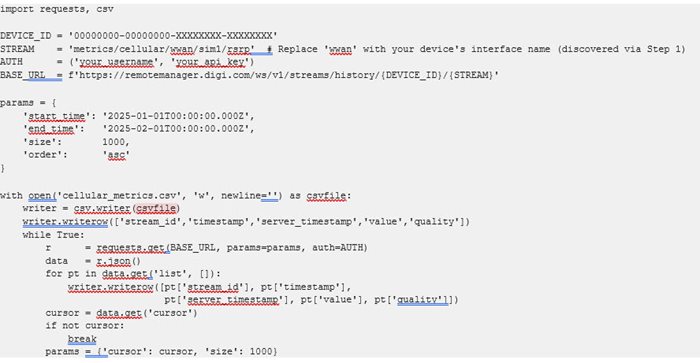
Note: To export multiple streams (rsrp, rsrq, signal_strength, cell_id, etc.) in one operation, or to export across an entire fleet, see the companion article: How to Export Digi Remote Manager API Data to CSV.
Common Issues
|
Symptom
|
Likely Cause
|
Resolution
|
|
Cellular metric streams do not appear for a device
|
Device Health metrics are not enabled, or the DAL OS firmware does not support the stream
|
Enable Device Health metrics on the device (see Prerequisites). If streams are still absent after enabling, update to the latest DAL OS firmware and re-run Step 1. Also verify that history calls use the exact interface name from the discovery response — using an incorrect interface name (e.g. 1 when the device uses wwan) will result in a 400 error rather than 404. If only the cell_id stream is missing after a DAL OS update, the cellular modem firmware capability should be investigated as a secondary step.
|
|
The cell_id stream is absent on some devices
|
The DAL OS firmware version does not yet support collecting this stream, or the cellular modem firmware does not expose cell identity data on this hardware
|
Update to the latest stable DAL OS firmware first — this resolves the issue in most cases. If the cell_id stream remains absent after a DAL OS update, the modem firmware is the next variable to investigate. Modem firmware is separate from DAL OS and is specific to the modem hardware module in your device. Check docs.digi.com for your device model, or contact Digi Support for guidance on modem firmware. Note: on some device models (e.g. TX54) the cell_id stream may not be reported regardless of firmware version — always confirm via stream discovery before assuming a firmware issue.
|
|
signal_strength returns RSRP on some devices and RSSI on others (see network field)
|
The active cellular technology differs across the fleet
|
Check the network field for each device. A value of 4g, lte, or 5g indicates RSRP; a value of 3g, 2g, or gsm indicates RSSI. Use the dedicated rsrp stream via streams/history for consistent RSRP values regardless of technology labelling.
|
|
Fewer datapoints are returned than expected
|
Results are paginated — a maximum of 1000 records are returned per response
|
Use the cursor value from the response in your next request. Continue until no cursor is returned.
|
|
API requests return data from the wrong account
|
The request is not scoped to the intended subaccount
|
Use the actor header with the target subaccount's customer_id to scope the request. See the Working with Subaccounts section above.
|
|
The customer_id parameter in a streams/history URL appears to have no effect
|
customer_id is not a valid query parameter for this endpoint
|
Remove customer_id from the request URL. To target a subaccount, use the actor HTTP request header instead. Valid query parameters are: start_time, end_time, size, order, and cursor.
|
Further Information
Last updated:
Jun 02, 2026