Introduction
This guide explains how to detect and resolve a configuration mismatch between a DAL-based device and its assigned Config Template in Digi OnPremise Manager.
Prerequisites
- Access to Digi On-Prem Manager with administrator or sufficient user rights
- At least one online DAL device enrolled in the system
Issue/Question
Can Digi On-Prem Manager help in detecting and resolving configuration mismatches on DAL devices?
Solution
Digi On-Prem Manager provides a Config Template feature that allows administrators to define and enforce a standard configuration across a group of DAL devices. When a device's running configuration diverges from its assigned template, On-Prem Manager automatically flags the mismatch, making it easy to identify and correct non-compliant devices.
This guide walks through the following phases to detect and resolve a configuration mismatch.
1. Create a Device Group and Assign a Config Template
Before a configuration mismatch can be detected, the device must belong to a group that has a Config Template assigned. Follow the steps below to set this up.
- Navigate to Groups and Create a Subgroup: From the left navigation menu, click Groups, then select Root. At the bottom of the Root page, locate the Subgroups section and click Create.
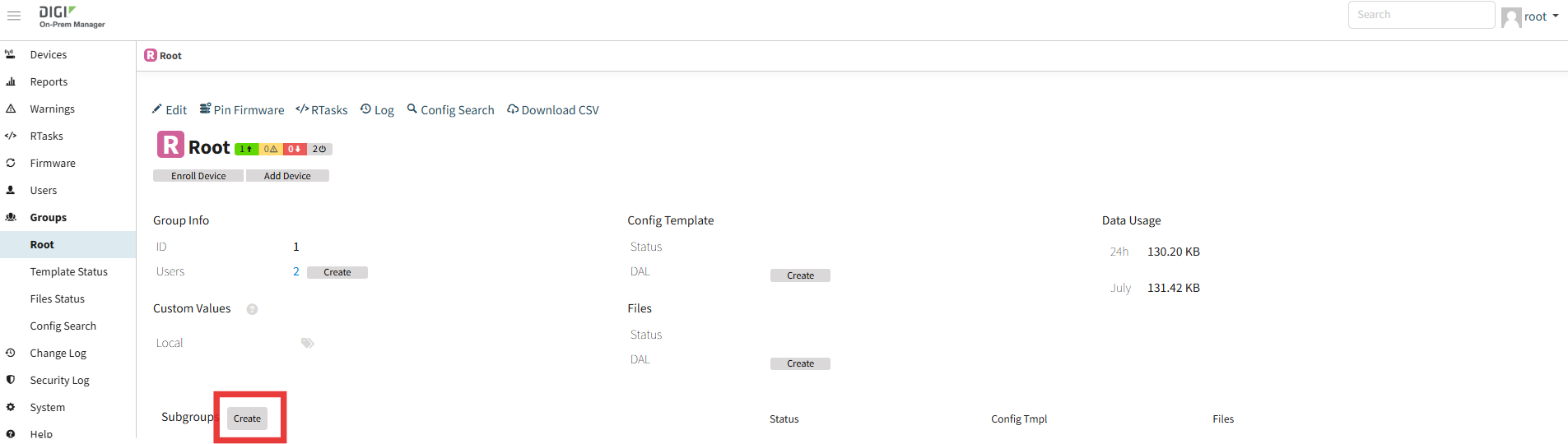
- Enter the Group Name and Save: In the Create Group form, enter a descriptive name for the group (e.g., IX20s). The Parent Group field will be pre-populated as Root. Click Save to create the group.

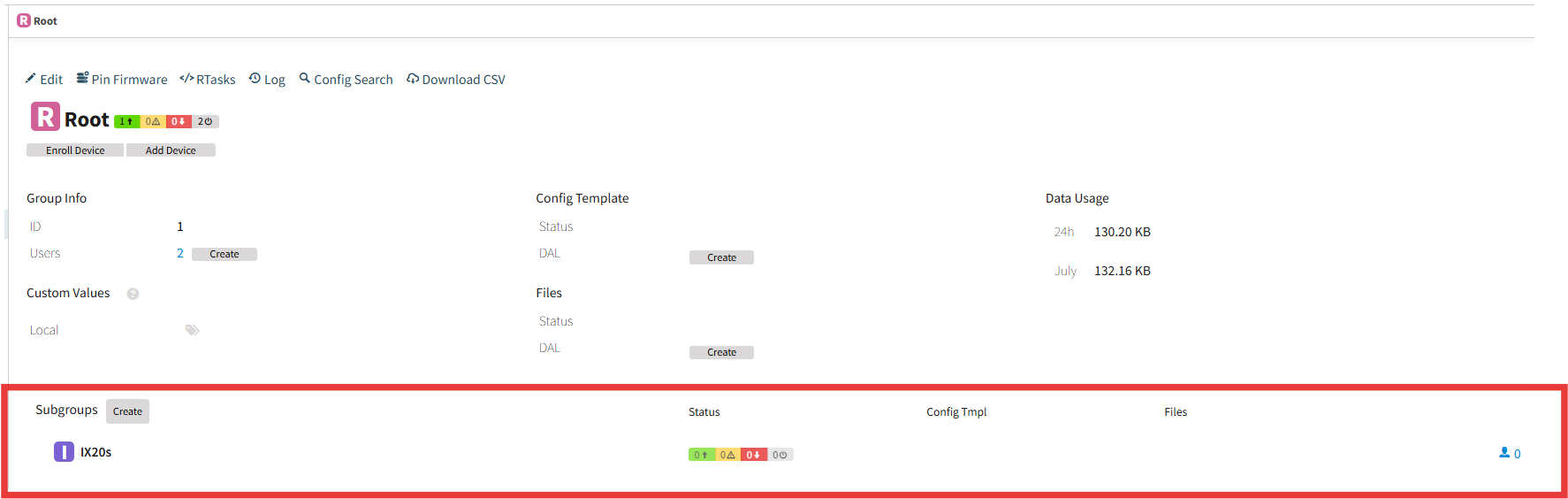
- After saving, the new subgroup (IX20s) will appear in the Subgroups section of the Root page with a status indicator showing 0 devices.
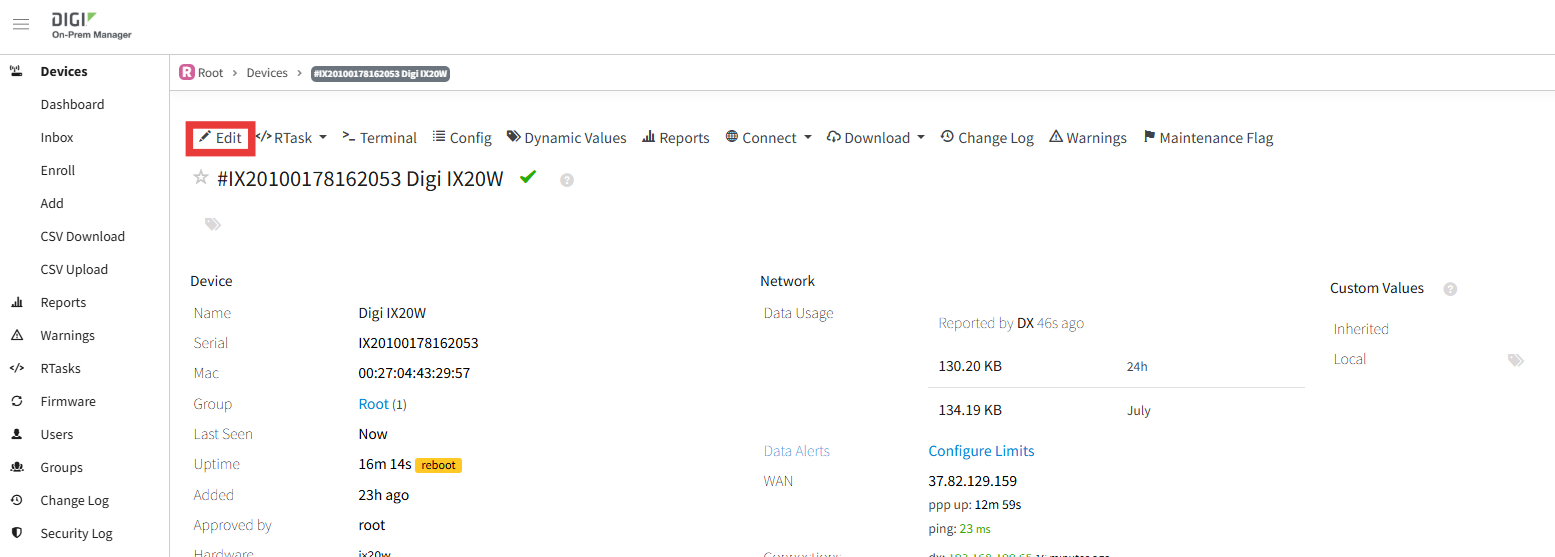
- Locate the Master Device: Navigate to Devices from the left menu. In the device list, find the device whose configuration you want to use as the template source. You can search by name or serial number. In this example, the device is a Digi IX20W:

- Edit the Device to Assign it to the New Group: On the device detail page, click the Edit button at the top. The Edit Device form opens. Locate the Group dropdown and select IX20s from the list (Root and IX20s will both be available). Click Save to move the device into the IX20s group:
- Navigate to the Device Config Tab: From the device detail page, click the Config tab in the top action bar. This displays the current running configuration of the device, along with its revision history.
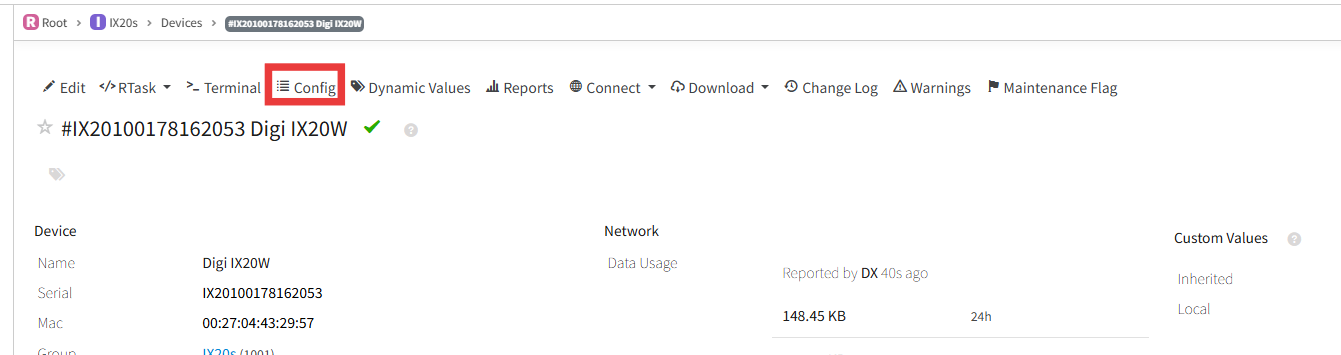
- Create a Config Template from the Device Config: On the Config page, click Create Config Template. This will use the device's current configuration as the basis for the group template.
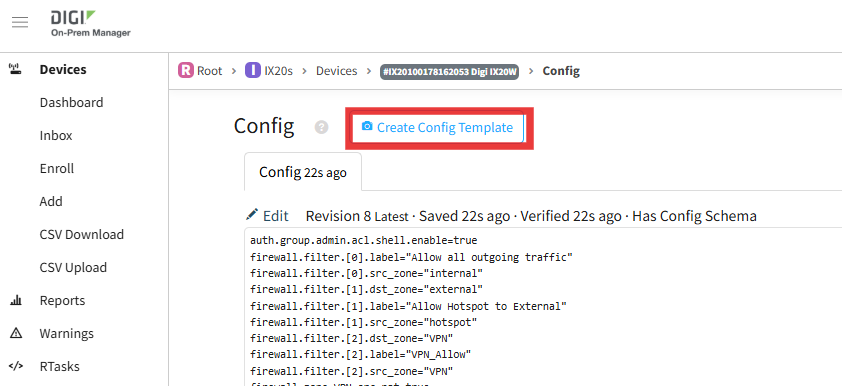
2. Define the Config Template
After initiating template creation, you will be taken to the Create Template editor where you can view and modify the configuration that will be applied to all devices in the group.
The Create Template page shows the full DAL configuration in text format.
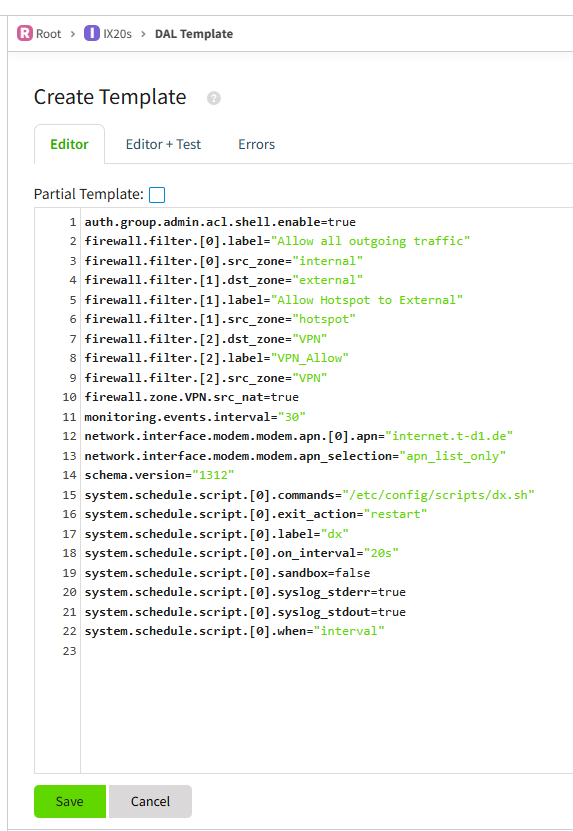
Review each line carefully. Enter/Remove one or more lines of configuration that devices in the group should have/not have.
Each line must follow the DAL line-based format: keys separated by periods, an equals sign, and the value. This is the same format you can see when viewing a DAL device's config directly.
Formatting rules:
- Empty lines are ignored and can be used to visually separate sections of the template.
- Lines beginning with # are treated as comments and ignored by the system. Use these to annotate the template.
- Config Templates are only supported for DAL-based devices. They are not applicable to non-DAL device types.
Once the configuration has been reviewed, click Save.
Notes:
Partial Template: When selected, only the lines defined in the template are enforced, any additional config on the device is allowed. When unselected, any config line not in the template is treated as non-compliant and will be added when resolved. In this example, Partial Template is not selected, meaning the template fully controls the device configuration.
Dynamic Templates: A Dynamic Template uses variables evaluated per device at resolution time, allowing a single template to produce different values for different devices. This example uses a static template only.
3. Detect and resolve a Configuration Mismatch
Once a Config Template is assigned to a group, Digi OnPremise Manager continuously evaluates whether each device's running configuration matches the template
- Detect if a device is not compliant: . A mismatch will be flagged in multiple places. You can spot it from the main Dashboard, from the Template Status page, from the Warnings section, or directly on the device detail page, examples below:
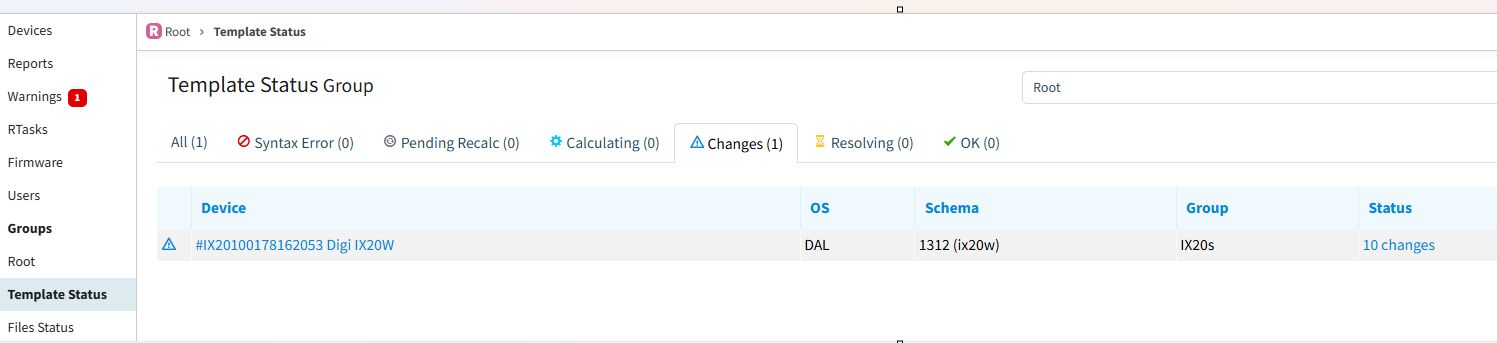
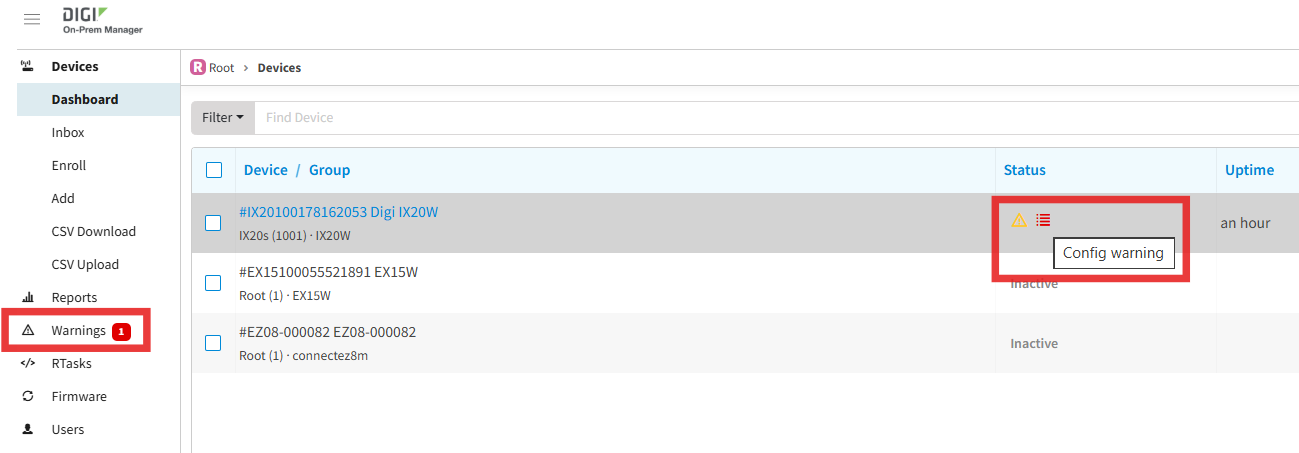
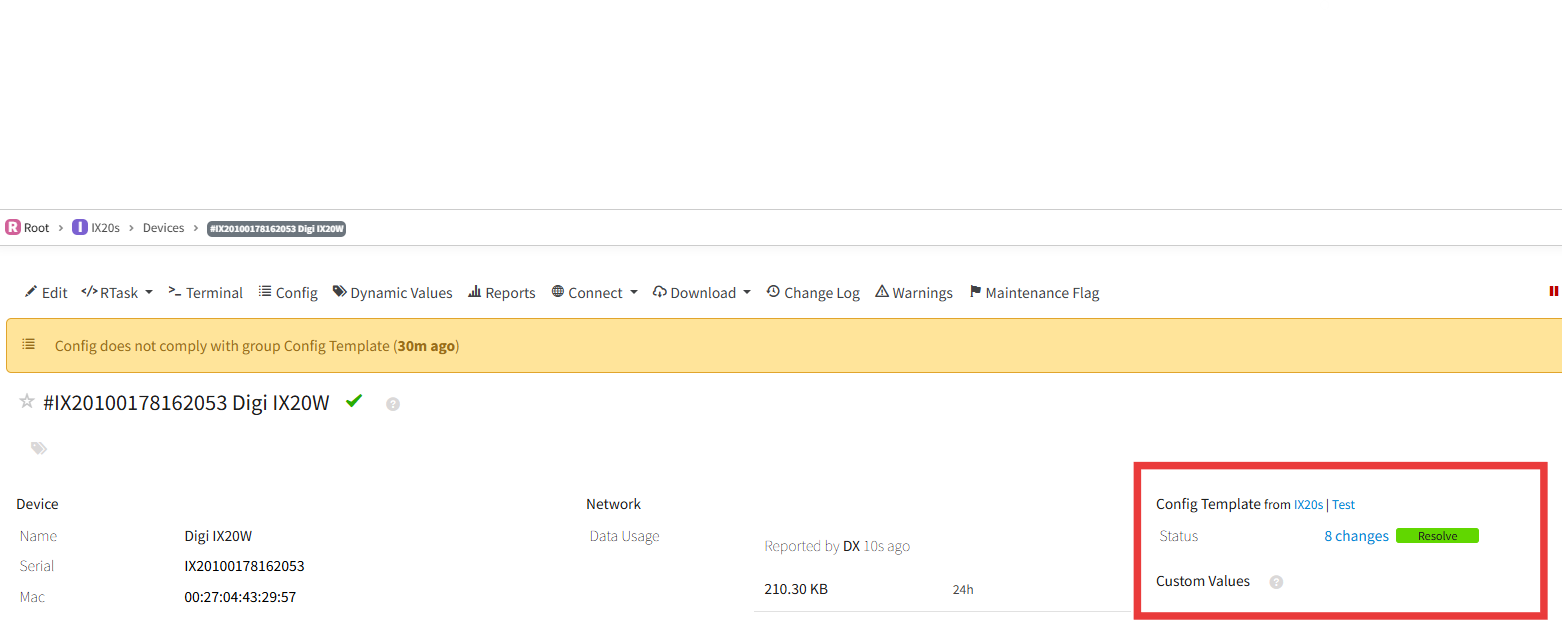
A device showing the Changes status has a running configuration that differs from the group template. The number of pending changes is displayed (e.g., 10 changes).
A device showing OK means it is fully compliant (no action needed).
- Identify the mismatching settings: Click the changes count link. This opens the Config Template Details page, which shows a diff view of the differences between the template and the device's current configuration. The diff view uses color coding to show what will change:
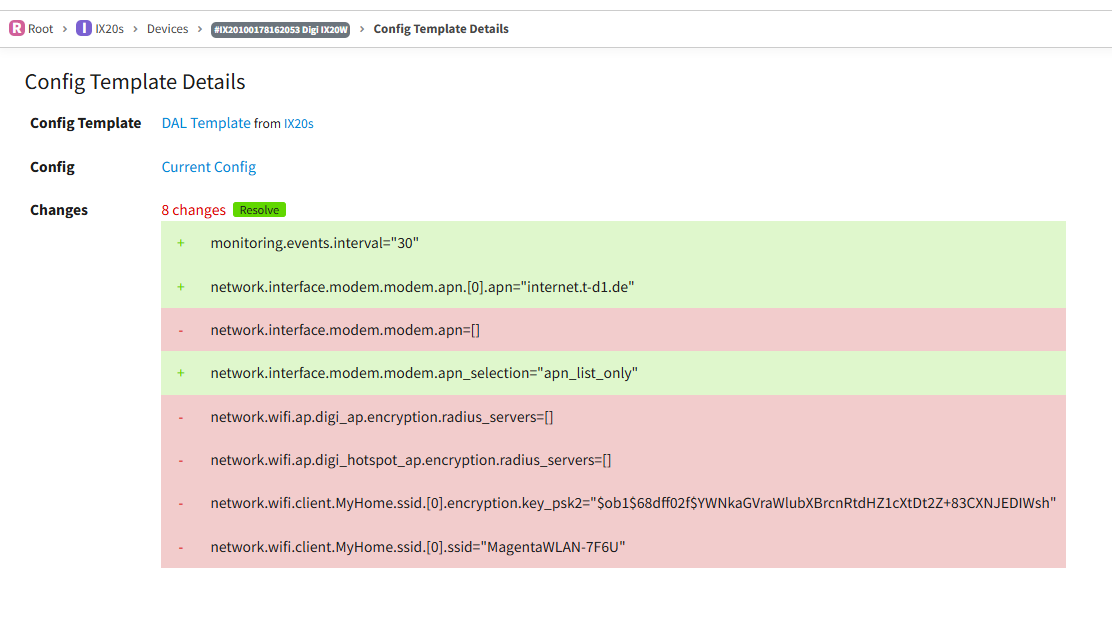
Green rows (+): Settings that will be added or updated on the device to match the template
Red rows (−): Settings that are present on the device but not in the template and will be removed
Review all changes carefully before resolving. Resolving will push these changes to the live device configuration.
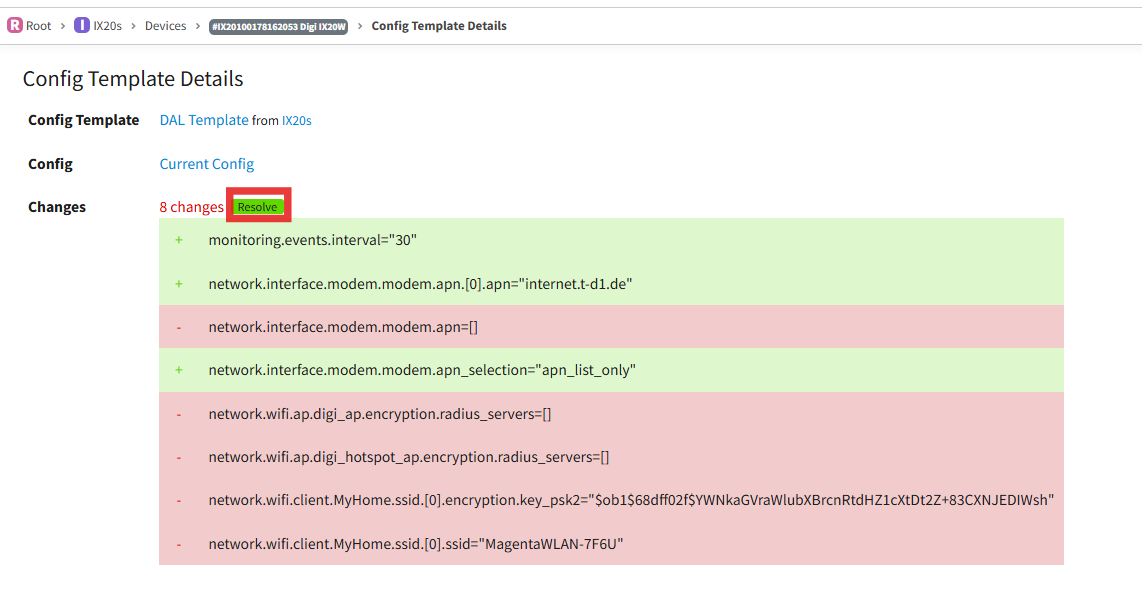
- Resolve the Configuration Mismatch: Once you have reviewed the differences and confirmed that the template should be applied, to resolve the mismatch, click Resolve on the Template Status Page:
A confirmation dialog will appear showing the following, click Confirm:
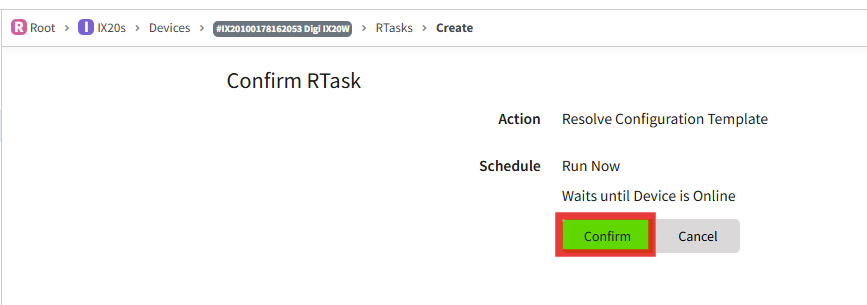
The task waits until the device is online before executing. If the device is currently connected, the task runs immediately.
After confirming, you will see two confirmation messages on the Config Template Details page: a blue banner confirming the RTask was created (e.g., Created Rtask resolve_config with ID 453) and a yellow banner indicating the resolve is in progress.
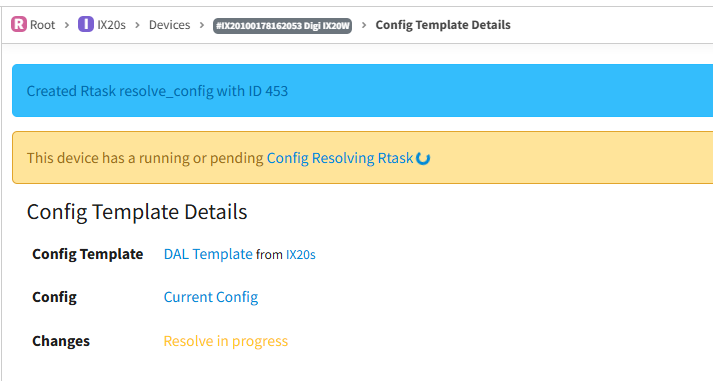
The Template Status page will show the device status as Resolving.

Once the RTask completes, the Config Template Details page will show Changes: Config is OK.
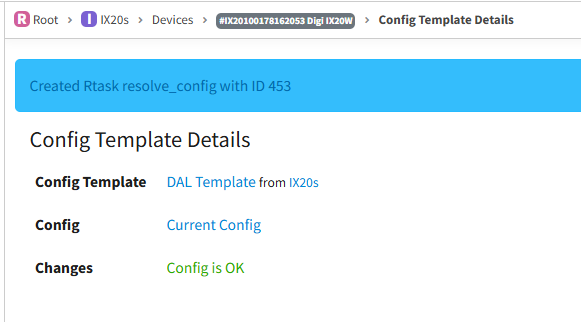
The Template Status page will move the device to the OK tab.
 On the device detail page, the Config Template panel will show Status: OK with no pending changes.
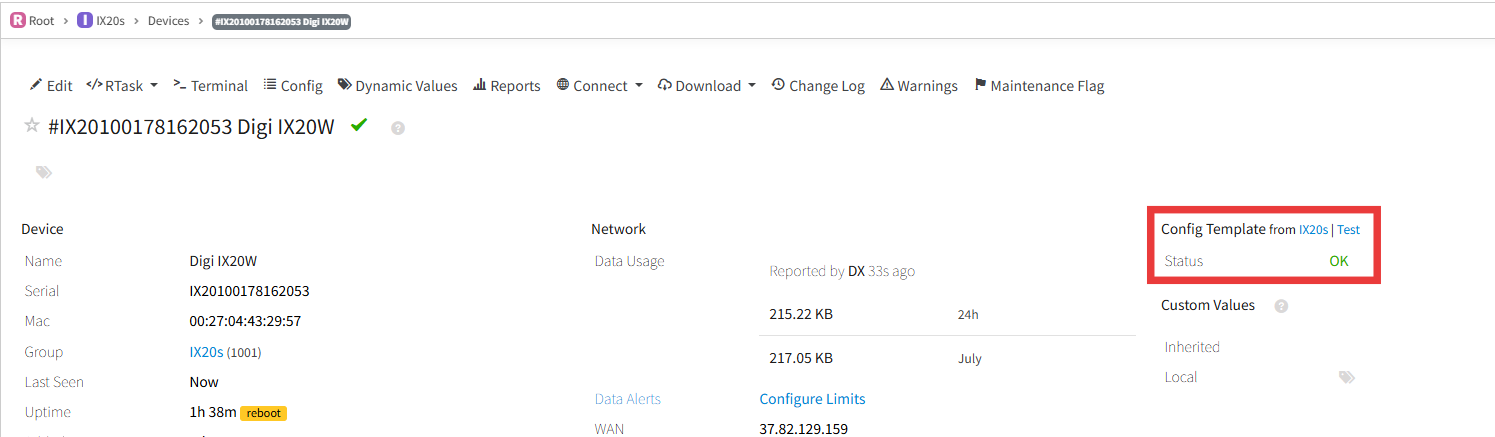
Resolution complete:The device configuration now complies with the group Config Template.
Note: Firmware Compatibility
When using a complete (non-partial) Config Template, it is strongly recommended that all devices in the group run the same firmware version and use the same hardware model. Different DAL firmware versions or different hardware platforms may not support the same configuration keys, which can cause resolution failures or unexpected behaviour.
If the template is partial and contains only a small set of universal settings (e.g., system.name="Test"), firmware and hardware differences are generally not a concern, as those keys are supported across all versions and models.
Last updated:
Sep 16, 2026