Introduction
Digi OnPremise Manager (DOM) allows users to upgrade the firmware on DAL routers even without an Internet connection, so uploading the file locally via Digi On-Prem Manager (DOM). This article shows the procedure step by step to do that.
Prerequisites
User need to have Digi On-Prem Manager (DOM) server running and a DAL router successfully enrolled and connected to it.
Question
How to upgrade the firmware on a DAL router that does not have Internet connection via Digi On-Prem Manager (DOM)?
Solution
Follow the steps below:
1. Download the firmware
DAL Cellular Routers firmware files may be downloaded via Digi Remote Manager. Click here to login: https://remotemanager.digi.com/ui/firmware
Important: Do not rename the firmware file. The filename format is essential, as it allows Digi On-Prem Manager (DOM) to correctly identify the router model and firmware version.
Once in the Digi Remote Manager Firmware section, select the model of the device and the desired version and click on Download:
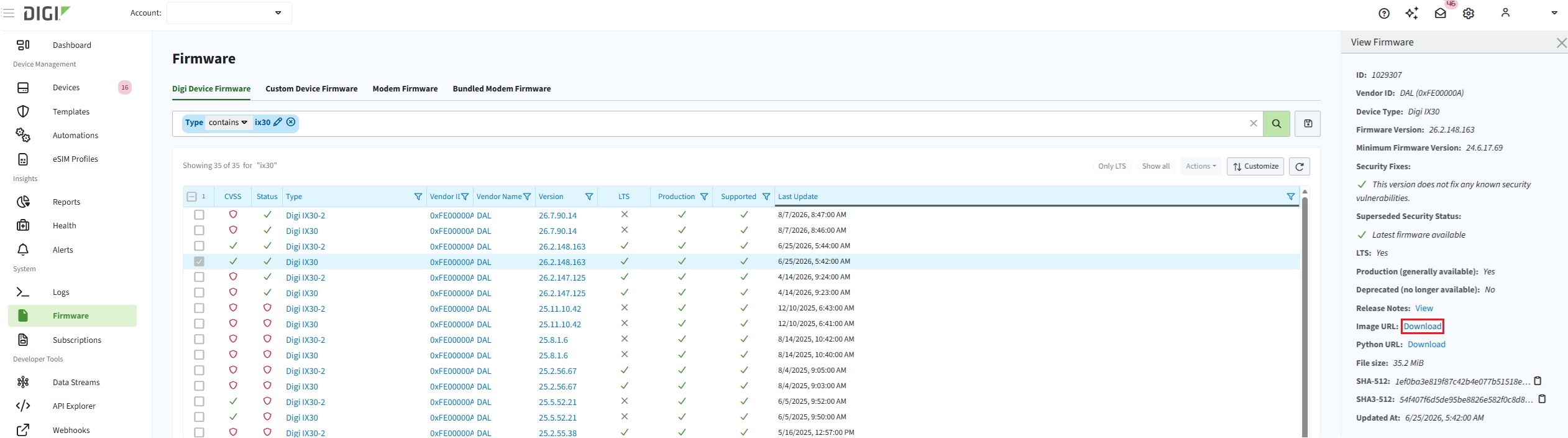
Note: If you do not already have a Digi Remote Manager account, a free "firmware only" account may be created by clicking the "Request firmware access" link at the https://remotemanager.digi.com website.
2. Upload the Firmware to Digi On-Prem (DOM)
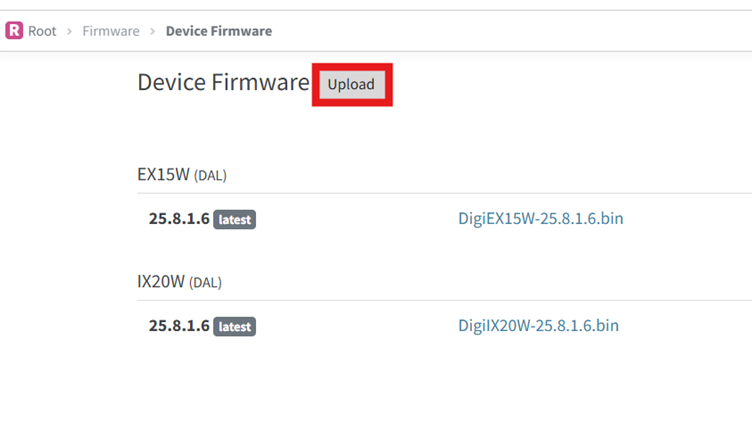
Once the firmware image is downloaded locally, in the Digi On-Prem Manager (DOM) dashboard, navigate to the sidebar and click Firmware, then select Device from the submenu and click Upload:
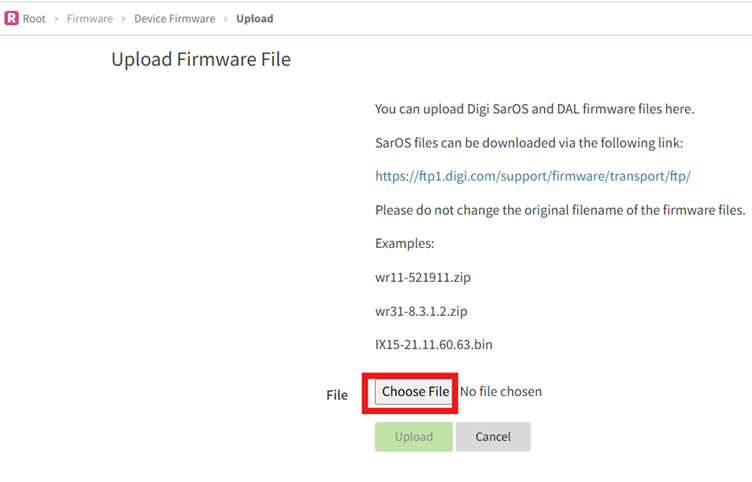
Click on "Choose File", browse your local system to select the downloaded firmware file, then click Upload to begin the transfer:
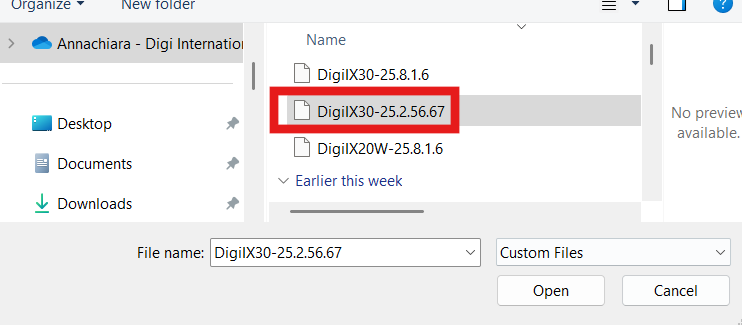
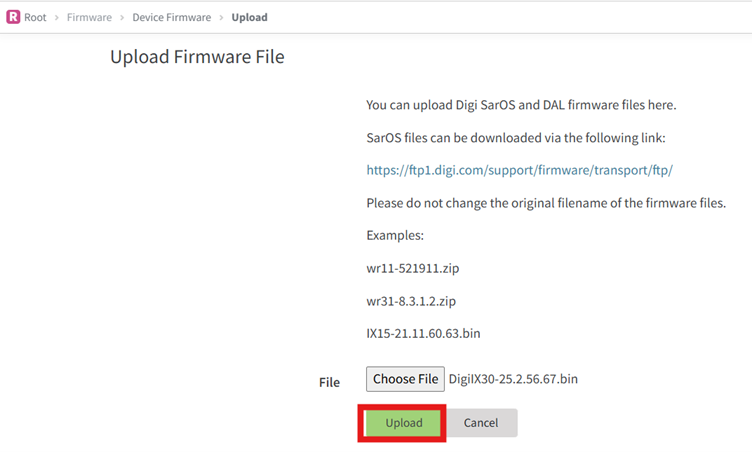
Once uploaded, the firmware will be available for deployment to compatible devices.
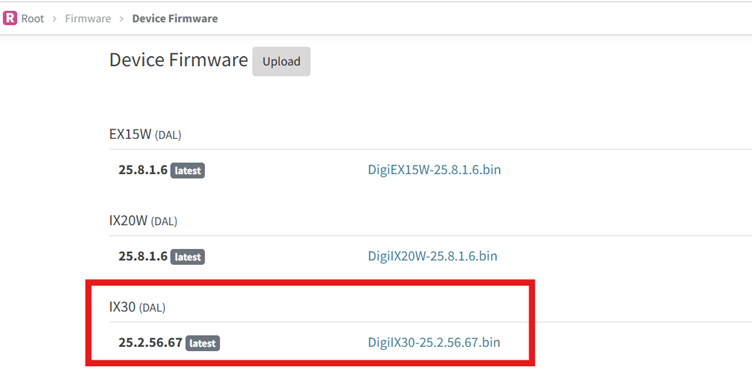
3. Upgrade the firmware on the router
To update the firmware, there are two methods
The first method is to directly click on "update to" in the Device dashboard:
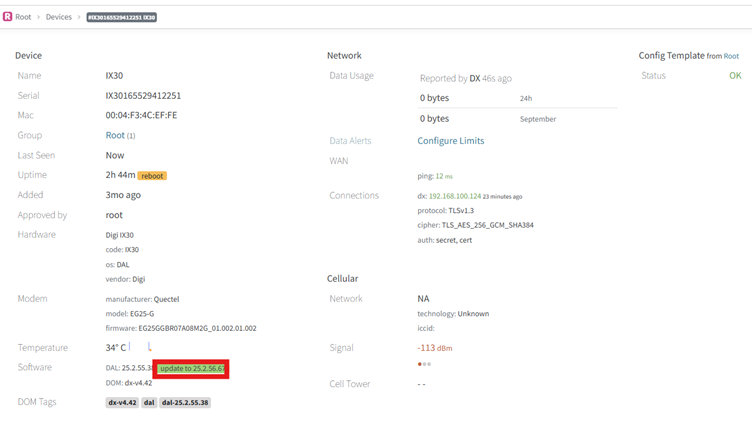
The second method is to manually create a "RTask", selecting "Update firmware" as action, and optionally specifying a RTask Name:
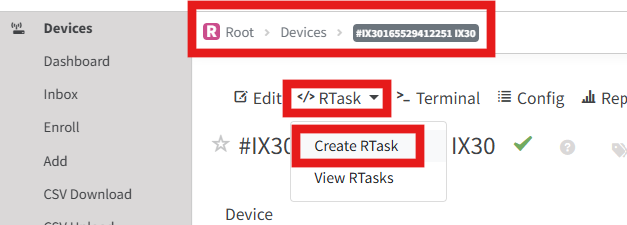
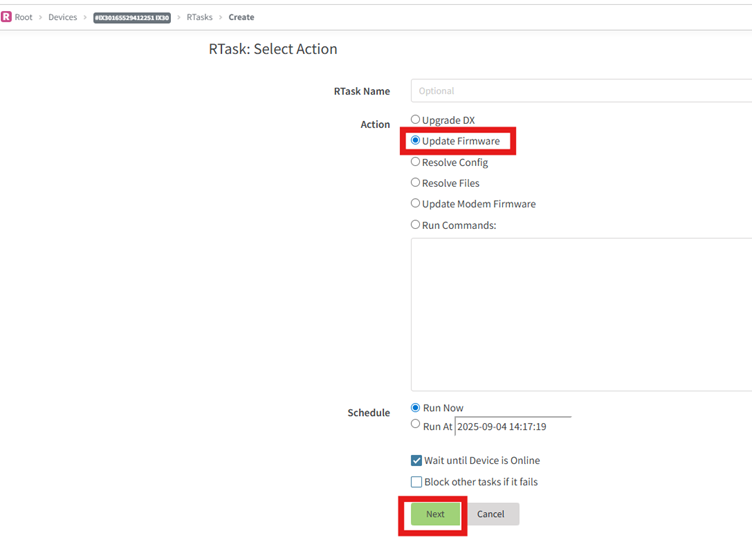
With the RTask method, the update can also be scheduled for a specific date and time.
Once all the fields are set, click on Next and Confirm:
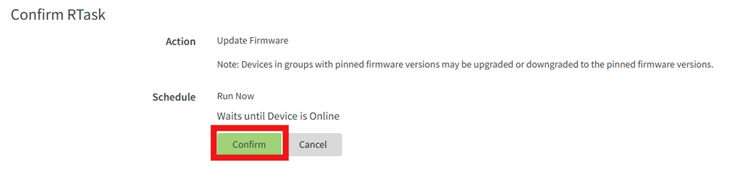
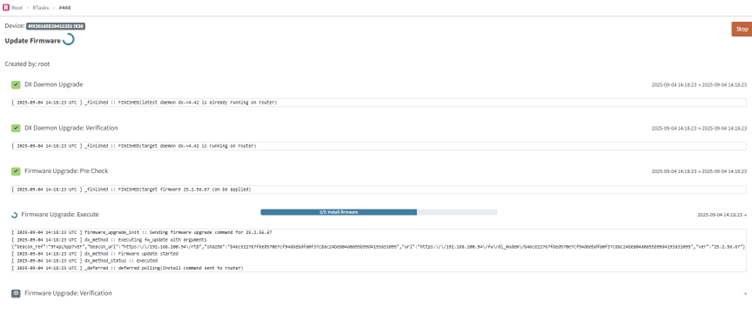
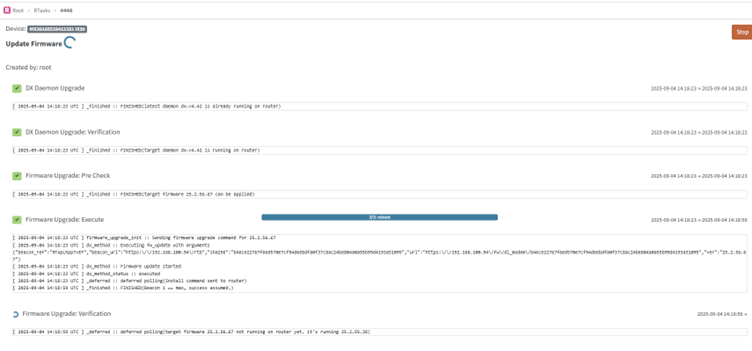
With both methods, an RTask for the update will start, and progress can be monitored until the new firmware verification step is done to confirm the router is now on the new version:
Last updated:
Aug 13, 2026