Introduction
This article covers how to use and authenticate the Digi On-Premises Manager (DOM) API using personal API tokens.
Prerequisites
- A running DOM installation with at least one active user account.
- Administrator access, required to navigate System settings and enable token creation.
- Access to the user account under which the token will be generated.
Issue / Question
How can API calls be authenticated in Digi On-Premises Manager, and what can the API be used for?
Solution
The DOM API allows users and administrators to interact with their DOM installation programmatically, without using the web dashboard.
To authenticate API calls, DOM uses personal API tokens. Two token types are available — Read Only and Read/Write — both scoped to the user they belong to and inheriting that user's access level. Any activity performed through the API is recorded in the change log, just as it would be when using the web dashboard.
Follow the steps below to enable a token and start using the API:
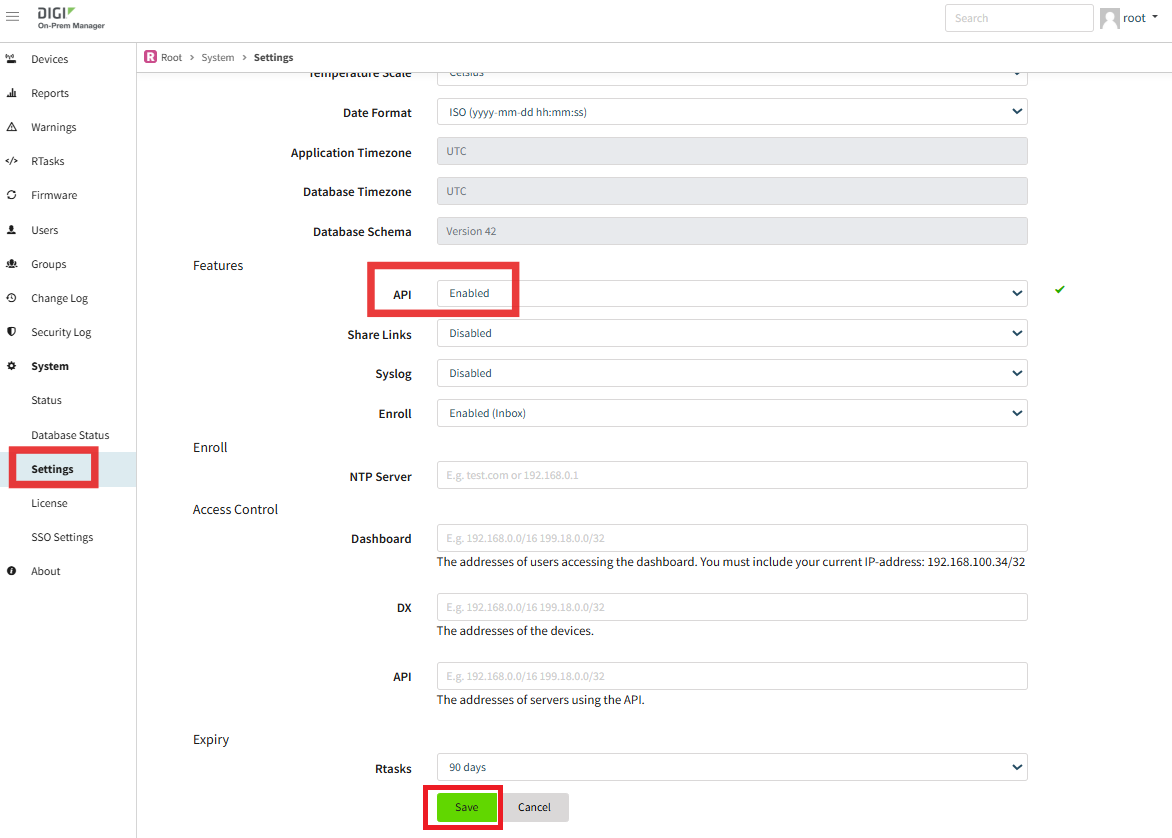
1. Go to System > Settings, set the API feature to Enabled, and click Save.
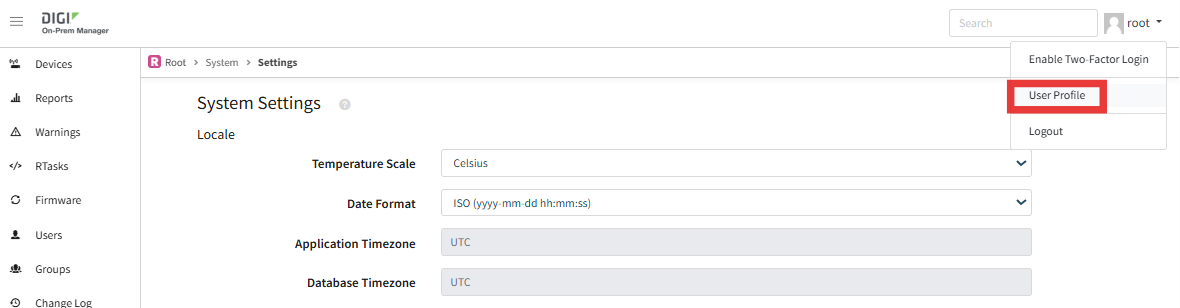
2. Click on your username in the top-right corner and select User Profile from the dropdown menu.
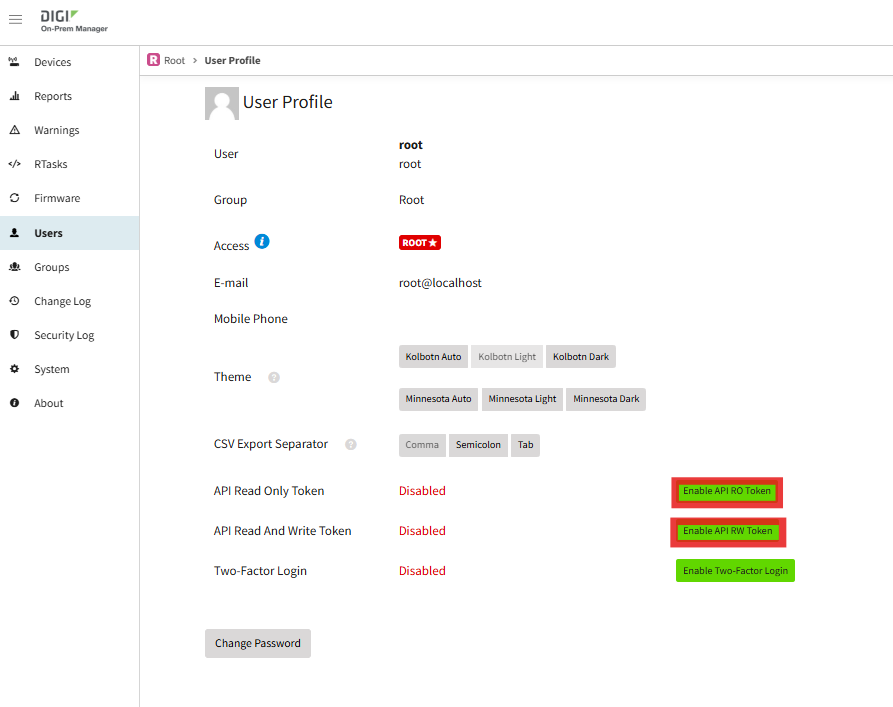
3. In the User Profile, click Enable API RO Token for Read Only access, or Enable API RW Token for Read/Write access.
4. The token will be displayed immediately and must be copied
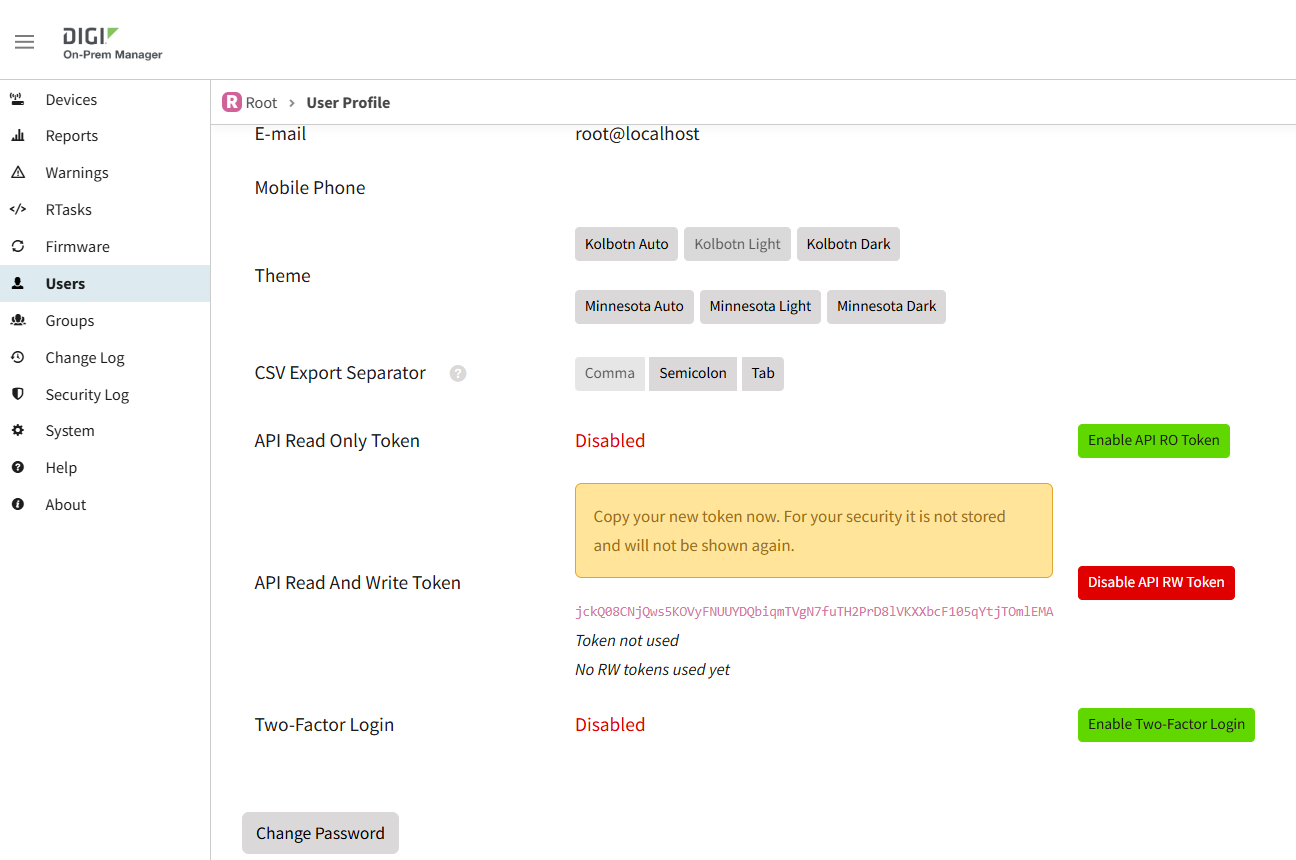
Note: API tokens are displayed only once at the time of creation. Copy and store the token securely before closing the dialog — it cannot be retrieved again. If a token is lost, you will need to revoke it and generate a new one.
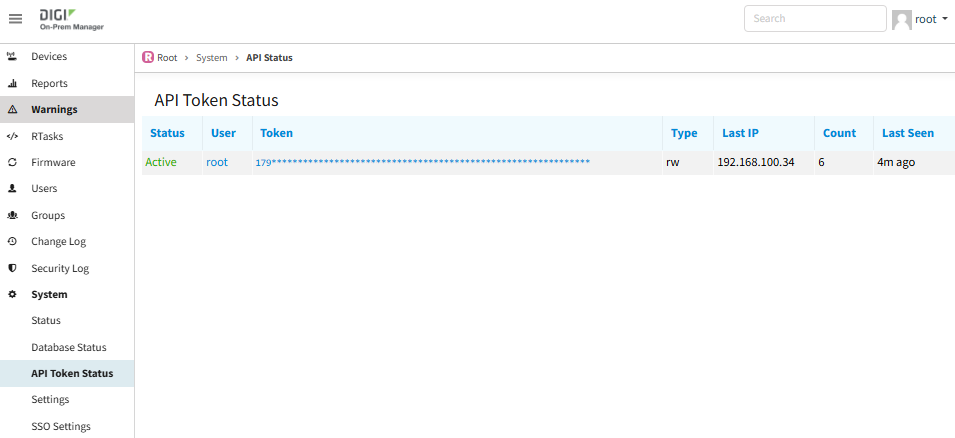
The status of all active tokens at any time under System > API Token Status. The table shows the token type, last IP address used, usage count, and last seen time.
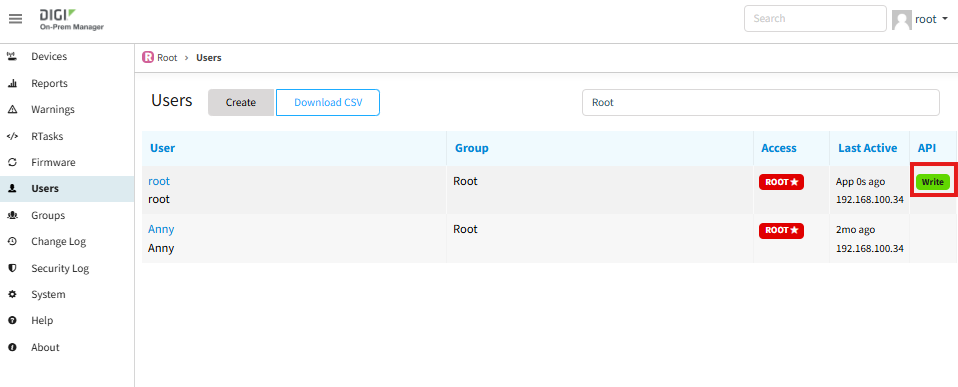
The Users list also shows an API column indicating the token type active for each user:
Examples
The examples below cover the most common API calls. Before running them, replace the placeholders with your own values:
- Replace dom.example with the hostname or IP address of your DOM server.
- Replace $RO_TOKEN or $RW_TOKEN with the corresponding API token.
- Append | python -m json.tool for formatted, readable output.
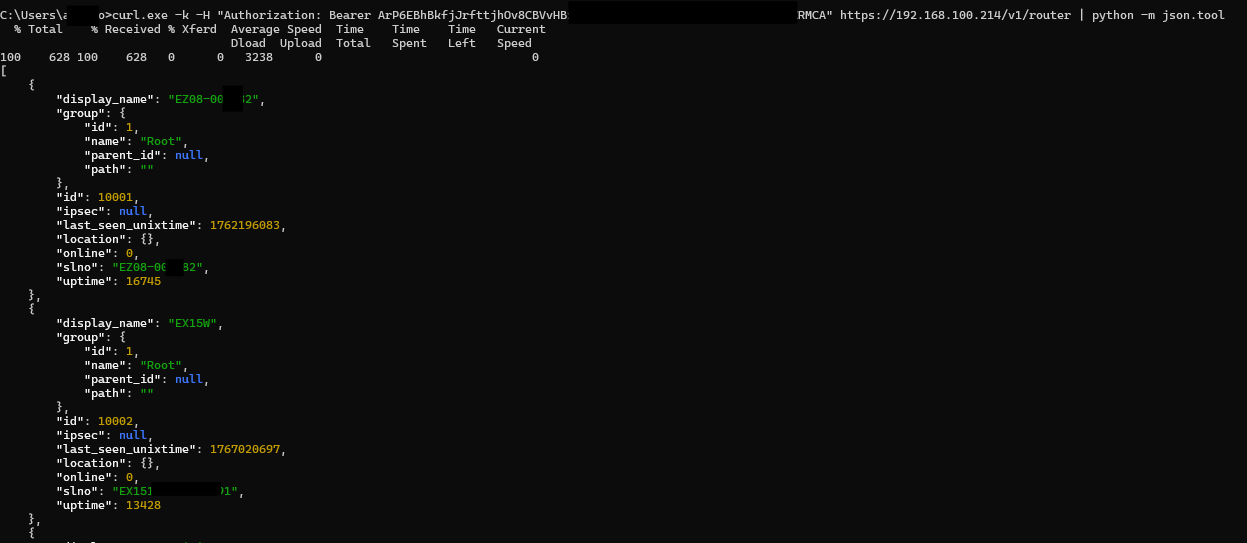
List all devices — Read Only
GET/v1/router
Returns a JSON list of all devices and their current status. Use ?sets=all for all fields or ?sets=short for a minimal response.
$ curl.exe -k -H "Authorization: Bearer $RO_TOKEN" https://dom.example/v1/router | python -m json.tool
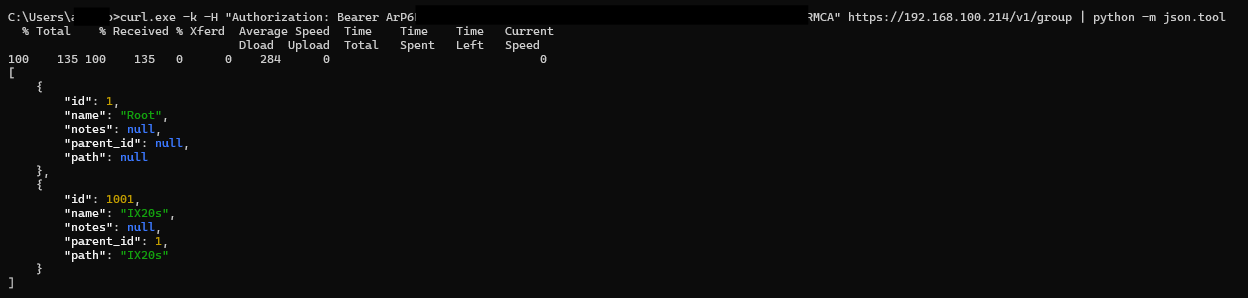
List all groups — Read Only
GET/v1/group
Returns all device groups the authenticated user has access to.
Filter devices by group — Read Only
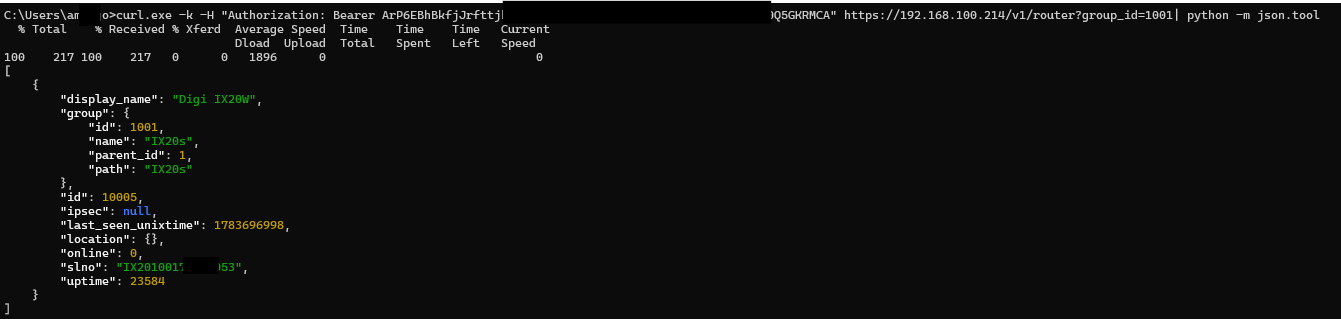
GET/v1/router?group_id={id}
Returns only devices in a specific group. You can also filter by display_name, slno, custom_id, or iccid.
$ curl.exe -k -H "Authorization: Bearer $RO_TOKEN" "https://dom.example/v1/router?group_id=1001" | python -m json.tool
Get details for a specific device — Read Only
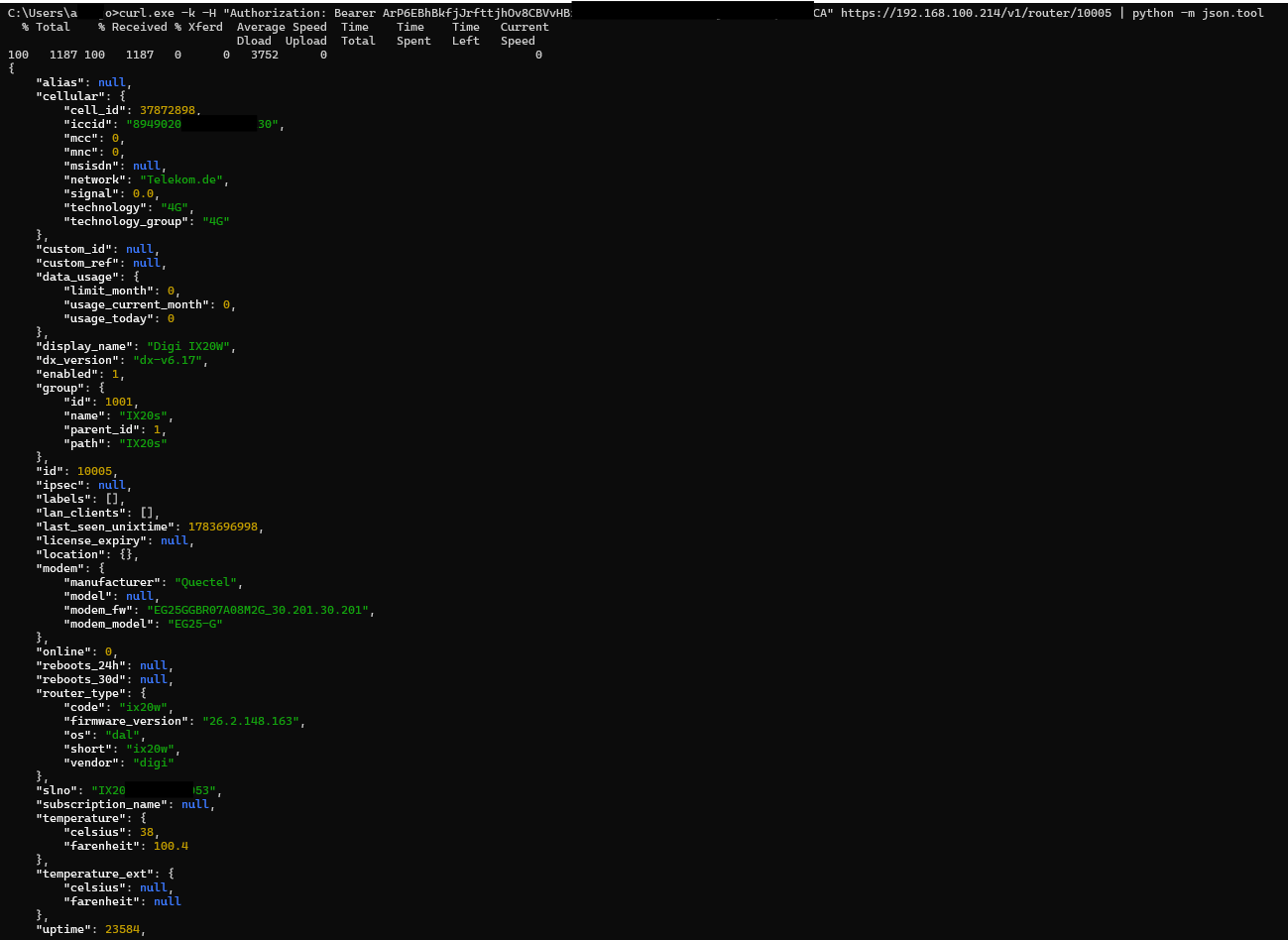
GET/v1/router/{id}
Returns full details for a single device by its numeric ID.
$ curl.exe -k -H "Authorization: Bearer $RO_TOKEN" https://dom.example/v1/router/10005 | python -m json.tool
Rename a device — Read/Write
POST/v1/router/{id}
Updates the display name of a device. Requires a Read/Write token.
$ curl.exe -k -X POST -H "Authorization: Bearer $RW_TOKEN" -H "Content-Type: application/json" -d "{\"display_name\": \"test-router-02\"}" https://dom.example/v1/router/10005 | python -m json.tool

Move a device to a different group — Read/Write
POST/v1/router/{id}
Moves a device to a different group by providing the target group's numeric ID. Use GET /v1/group first to retrieve the available group IDs. Requires a Read/Write token.
$ curl.exe -k -X POST -H "Authorization: Bearer $RW_TOKEN" -H "Content-Type: application/json" -d "{\"group\": {\"id\": 1}}" https://dom.example/v1/router/10005 | python -m json.tool

Remove a device — Read/Write
DELETE/v1/router/{id}
Permanently removes a device by its numeric ID. Requires a Read/Write token. Use with caution.
$ curl.exe -k -X DELETE -H "Authorization: Bearer $RW_TOKEN" https://dom.example/v1/router/10005 | python -m json.tool

Further Information
The full API specification, including a complete list of available endpoints, parameters, and response schemas for a DOM installation, is available at https://<your-dom-server>/api
Last updated:
Sep 16, 2026