LatenceTech QoS Agent on a Digi DAL OS device
This article details how to run the LatenceTech QoS Agent on a Digi device to monitor the quality and performance of your network connections provided by the Digi device.
What are Digi Containers?
Digi Containers Service is an add-on service that simplifies and centralizes the process of building, deploying and running custom applications on devices managed with Digi Remote Manager® (Digi RM). With a Digi RM license and Digi Containers, you deploy containerized programs or Python applications at scale and on any device running DAL OS.
Implemented via Lightweight Linux Containers (LXC), Digi Container Service makes the process portable, scalable, secure, fast and efficient. Digi empowers companies to orchestrate and manage a complex series of containers in various structures and configurations across enterprise, industrial, transportation and other use cases.
Disclaimer: Digi provides a compute environment for customers and partners to deploy their own container-based applications. The Digi technical support team neither develops any custom container applications, nor supports these containers developed by the customer or partner. It is the sole responsibility of customers and/or partners to develop, test, deploy, and support any custom container applications running on Digi devices. Digi does not fix any bugs in the containers deployed onto Digi devices. Also, Digi does not guarantee that these container applications continue to work on newer firmware versions. For support with the QoS Agent application itself, contact LatenceTech (support@latencetech.com). For support in developing or troubleshooting custom containers, please contact the Digi Professional Services team.
What is the LatenceTech QoS Agent?
LatenceTech provides a network latency and quality-of-service monitoring solution aimed at cellular, 5G, Wi-Fi and satellite links. Rather than reporting only throughput, the platform continuously measures latency, jitter, packet loss and link stability, then compares the live measurements against the performance a given site is expected to deliver, so degradation can be spotted before it becomes an outage.
The solution has three parts:
| Component |
Role |
Where it runs |
| QoS Agent |
Runs the active measurements (ICMP, TCP, UDP, HTTP/HTTPS, TWAMP, iPerf3, packet-loss and bandwidth-estimation probes) and publishes results |
On the edge device — in this article, inside an LXC container on the Digi router |
| Reflector |
The far-end target the agent measures against |
LatenceTech-hosted, or customer-hosted |
| Analyzer / message bus |
Ingests the published metrics and presents dashboards and alerting |
LatenceTech-hosted (msgbus.latence.ca), or customer-hosted |
Running the agent on the Digi router itself means the measurements reflect what the router's own WAN link is actually delivering — the same link your application traffic uses — with no extra hardware at the site.
Why a container?
The QoS Agent is a set of prebuilt Linux binaries with their own libraries, D-Bus and shell dependencies. Packaging it as an LXC container keeps those dependencies isolated from DAL OS while still running at native speed on the router's CPU.
The container used in this article is based on Alpine Linux 3.23 and contains QoS Agent 2.5.0. It is approximately 17 MB as a compressed tarball and 49 MB unpacked.
What the agent measures
/lti/bin/start_services.sh launches one process per measurement type. Each is independently enabled or disabled by setting its interval variable in /lti/env.sh (an interval of 0 disables that probe):
| Service |
Purpose |
Interval variable |
Default port |
publisher |
Publishes all results to the analyzer message bus |
— |
12092 (outbound) |
icmp |
Round-trip latency / reachability |
LTI_icmp_interval |
— (ICMP) |
http / https |
Application-layer response time |
LTI_http_interval, LTI_https_interval |
12080 / 12443 |
tcp / udp |
Transport-layer latency |
LTI_tcp_interval, LTI_udp_interval |
12023 / 12024 |
twamp |
Two-Way Active Measurement Protocol (RFC 5357) |
LTI_twamp_session_interval |
12862 control, 12800 session |
lifbe |
Available-bandwidth / jitter estimation |
LTI_lifbe_session_interval_ms |
— |
iperf3 |
Periodic throughput test |
LTI_iperf3_session_interval |
12501 |
packetlossudp |
UDP packet-loss measurement |
LTI_packetlossudp_interval |
— |
decomposition |
Splits measured latency into network vs. application components |
LTI_decomposition_client_interval |
12700 |
Firewall note: all of this traffic is outbound from the Digi device to the LatenceTech reflector and analyzer. No inbound ports need to be opened on the router. If the site has an upstream firewall, the non-standard high ports listed above (plus TCP 12092 to the analyzer) must be permitted outbound.
Prerequisites
-
A supported Digi DAL OS device. This article covers the arm64 (aarch64) platforms: IX40, IX25, TX65, EX60 and EX61. The container binaries are aarch64 and will not run on the MIPS or x86 DAL OS products.
| Device |
CPU |
Total RAM |
Total flash storage |
Available RAM |
Available flash storage |
| IX40 |
Quad core aarch64 ARMv8 |
1 GB |
8 GB |
900 MB |
7 GB |
| IX25 (all variants) |
Quad-core aarch64 ARMv8 |
1 GB |
8 GB |
900 MB |
6.4 GB |
| TX65 (all variants) |
Quad-core SDX72 aarch64 ARMv8 |
2 GB |
8 GB |
1.2 GB |
5.1 GB |
| EX60 |
Quad-core SDX72 aarch64 ARMv8 |
2 GB |
8 GB |
1.2 GB |
5.1 GB |
| EX61 |
Quad-core SDX72 aarch64 ARMv8 |
2 GB |
8 GB |
1.2 GB |
5.1 GB |
All four platforms have ample headroom for this container: DAL OS itself uses roughly 50 MB of RAM (more with features such as VPN tunnels, VLANs or Wi-Fi hotspots enabled) and reserves 100–150 MB of flash for firmware images, leaving several gigabytes of flash free on every one of these products.
For the general list of DAL OS devices that support Digi Containers and their available memory and storage, see the Note on system resource limitations section of the Digi Containers SDK article.
-
Firmware. Device running DAL OS firmware 26.2.148.165 or newer. See Digi firmware update instructions **
-
Free storage. At least 100 MB free in /opt/ — enough to hold the container tarball (17 MB) and the unpacked, persistent container (49 MB) at the same time. Check with show system verbose from the Admin CLI or df -h from the shell console. The tarball can be deleted after the container is created.
-
Digi Remote Manager with the Digi Containers subscription. Add the device to Digi RM and assign the Digi Containers license (SKU DIGI-RM-PRM-CS) to it. See Digi Containers subscriptions.
-
Internet access on the Digi device. The agent must reach the LatenceTech reflector and analyzer.
-
Shell access to the device. See Authentication groups for configuring a group that includes shell access. Access the shell from the Terminal page of the device's local web UI, or over SSH.
-
The QoS Agent container file. Download arm64_qos_agent.tgz
-
Your LatenceTech account values. These are issued by LatenceTech when your QoS monitoring subscription is provisioned; contact LatenceTech (support@latencetech.com) if you do not have them. You will need one set per device:
| Value |
Variable |
Notes |
| Customer ID |
LTI_customer_id |
Same for all of your devices |
| Agent ID |
LTI_agent_id |
Must be unique per device. Reusing an ID across two agents causes them to overwrite each other's data |
| License key |
LTI_license_key |
Licensed for a fixed number of agents and has an expiry date |
| Reflector address |
LTI_reflector |
IP address of the measurement far-end |
| Analyzer address |
(none — set in /etc/hosts) |
IP address that msgbus.latence.ca must resolve to |
Setup instructions
The QoS Agent is configured through a single file inside the container, /lti/env.sh. Because every device needs its own agent ID (and, usually, its own site metadata), the cleanest approach is to customize the container on a Linux host first and then transfer the finished tarball to the device. Steps 1–3 below cover that; if you prefer, you can instead deploy the stock container and edit /lti/env.sh from inside the running container (see Editing the configuration in place).
1. Unpack the container on a Linux host
tar -xzf arm64_qos_agent.tgz
This produces a rootfs/ directory.
2. Set your LatenceTech values in rootfs/lti/env.sh
Edit the variables at the top of the file:
export LTI_agent_id=[AGENT_ID]
export LTI_customer_id=[CUSTOMER_ID]
export LTI_license_key=[LICENSE_KEY]
export LTI_reflector=4.204.25.217
export LTI_agent_name=[AGENT_NAME]
export LTI_agent_hardware=[DIGI_HARDWARE_VERSION]
export LTI_agent_net_type=[CELLULAR_CONNECTION_TYPE]
export LTI_agent_net_name=[CELLULAR_NETWORK_PROVIDER]
export LTI_agent_address=[PHYSICAL_ADDRESS]
export LTI_agent_gps_pos=[LAT-LON_COORDINATES]
export LTI_agent_details=[SITE_NAME]
export LTI_agent_expected_application_latency=70
export LTI_agent_expected_stability=95
LTI_agent_id, LTI_license_key and LTI_reflector are mandatory — start_services.sh refuses to start if any of them is empty. The remaining values are descriptive metadata used to label the agent in the LatenceTech dashboards, and LTI_agent_expected_application_latency / LTI_agent_expected_stability define the thresholds this site is expected to meet.
3. Point the container at your analyzer and DNS server, then repack
The agent publishes its results to the host name msgbus.latence.ca, which is resolved from the container's own /etc/hosts file. Set it to the analyzer IP address LatenceTech gave you:
echo "146.183.11.71 msgbus.latence.ca" > rootfs/etc/hosts
Set the container's DNS server to the Digi device's LAN IP address (the default on a standard DAL OS configuration is 192.168.2.1):
echo "nameserver 192.168.2.1" > rootfs/etc/resolv.conf
Then set the container's file ownership and repack. The UID/GID 165536 is required — DAL OS runs containers in a user namespace mapped to that ID:
sudo chown -R 165536 rootfs
sudo chgrp -R 165536 rootfs
sudo tar -czf arm64_qos_agent.tgz rootfs
On macOS, add --disable-copyfile:
sudo tar --disable-copyfile -czf arm64_qos_agent.tgz rootfs
4. Transfer the container to the Digi device
Use SCP or WinSCP to copy the tarball into /opt/lib/lxc/ on the device:
scp arm64_qos_agent.tgz admin@192.168.2.1:/opt/
5. Create the container
From the Admin CLI of the Digi device, create the container, then delete the tarball to reclaim space:
> container create /opt/arm64_qos_agent.tgz local
> rm /opt/arm64_qos_agent.tgz
The container name is taken from the tarball filename — in this example, arm64_qos_agent.
6. Configure the container
From the Admin CLI, or from Device Management → Device Configuration → System → Containers in the web UI or DRM, disable Clone host system libraries (the container is self-contained and does not need DAL OS libraries), enable Virtual Network, give the container an address on the device's LAN, and set it to start automatically with the agent's start command:
> config
(config)> system container arm64_qos_agent dal false
(config)> system container arm64_qos_agent network true
(config)> system container arm64_qos_agent address "192.168.2.2/24"
(config)> system container arm64_qos_agent bridge "lan"
(config)> system container arm64_qos_agent gateway "192.168.2.1"
(config)> system container arm64_qos_agent start_on_boot true
(config)> system container arm64_qos_agent args "-p /lti/bin/start_services.sh"
(config)> system container arm64_qos_agent restart_timeout "30s"
(config)> validate
(config)> save
The resulting configuration, as shown by show config:
add system container arm64_qos_agent
system container arm64_qos_agent address "192.168.2.2/24"
system container arm64_qos_agent args "-p /lti/bin/start_services.sh"
system container arm64_qos_agent bridge "lan"
system container arm64_qos_agent dal "false"
system container arm64_qos_agent gateway "192.168.2.1"
system container arm64_qos_agent network "true"
system container arm64_qos_agent restart_timeout "30s"
system container arm64_qos_agent start_on_boot "true"
Notes on these settings:
-
Clone host system libraries (dal) must be disabled. When enabled, DAL OS mounts its own /bin/, /lib/, /sbin/, /usr/bin/ and /usr/lib/ over the container's, which would hide the Alpine libraries the agent binaries are linked against.
-
The gateway setting and the container's /etc/resolv.conf must both point at the Digi device's LAN IP address, and the container's address must be free on that subnet.
-
args is the command DAL OS runs when it starts the container. -p starts it in persistent mode.
-
restart_timeout allows the container 30 seconds to shut down cleanly on reboot.
With start_on_boot and args configured as above, the agent starts automatically with the router and after every reboot — no scheduled task is required for the single-device case.
7. Start the agent
Once the above configuration is applied, DAL will start the container automatically. If you would like to instead start the container manually, run the following from the shell console:
lxc arm64_qos_agent -p /lti/bin/start_services.sh
Note: start_services.sh sources /lti/env.sh, validates the mandatory variables, checks the license, and then launches each measurement process. Expected output:
qos-agent-2.5.0
[Info] Max number of agents: 5
[Info] License is valid and expires on Sun 2026-08-30 at 16:52:20 UTC
Starting qos-agent services
Launching publisher
Launching https
Launching http
Launching tcp
Launching udp
Launching icmp
Launching twamp
Launching lifbe
Launching iperf3
Launching packetlossudp
After that, the combined contents of the per-service log files stream to the console.
Editing the configuration in place
To open an interactive shell in the running container — useful for editing /lti/env.sh on the device or for troubleshooting:
lxc-attach -n arm64_qos_agent -- /bin/bash -l
From that prompt, edit /lti/env.sh (and /etc/hosts) as described in steps 2 and 3, then run:
/lti/bin/start_services.sh
Changes made this way persist in the container on the device, but they are not carried into the tarball, so they will not be replicated to other devices or survive re-creating the container. For fleet deployment, customize the tarball (steps 1–3) instead.
Keeping the agent running
start_on_boot restarts the container after a reboot or power cycle. Within the container, each measurement process is supervised by launch_app.sh, which automatically relaunches any probe that crashes (with a back-off delay that doubles after each failure).
Verifying operation
On the device. Each measurement process writes to its own log file inside the container:
lxc-attach -n arm64_qos_agent -- tail -f /lti/log/app.publisher.log
A healthy lifbe log, for example, shows a completed measurement cycle:
[Publisher] |SenderMBPS      | 5.33418E+00 Mbps
[Publisher] |ReceiverMBPS    | 5.73418E+00 Mbps
[Publisher] |SenderJitter    | 10.060673217 ms
[Publisher] |ReceiverJitter  | 3.217517190 ms
[Publisher] |SenderLossRate  | 0 %
[Publisher] |Rtt             | 130.392015000 ms
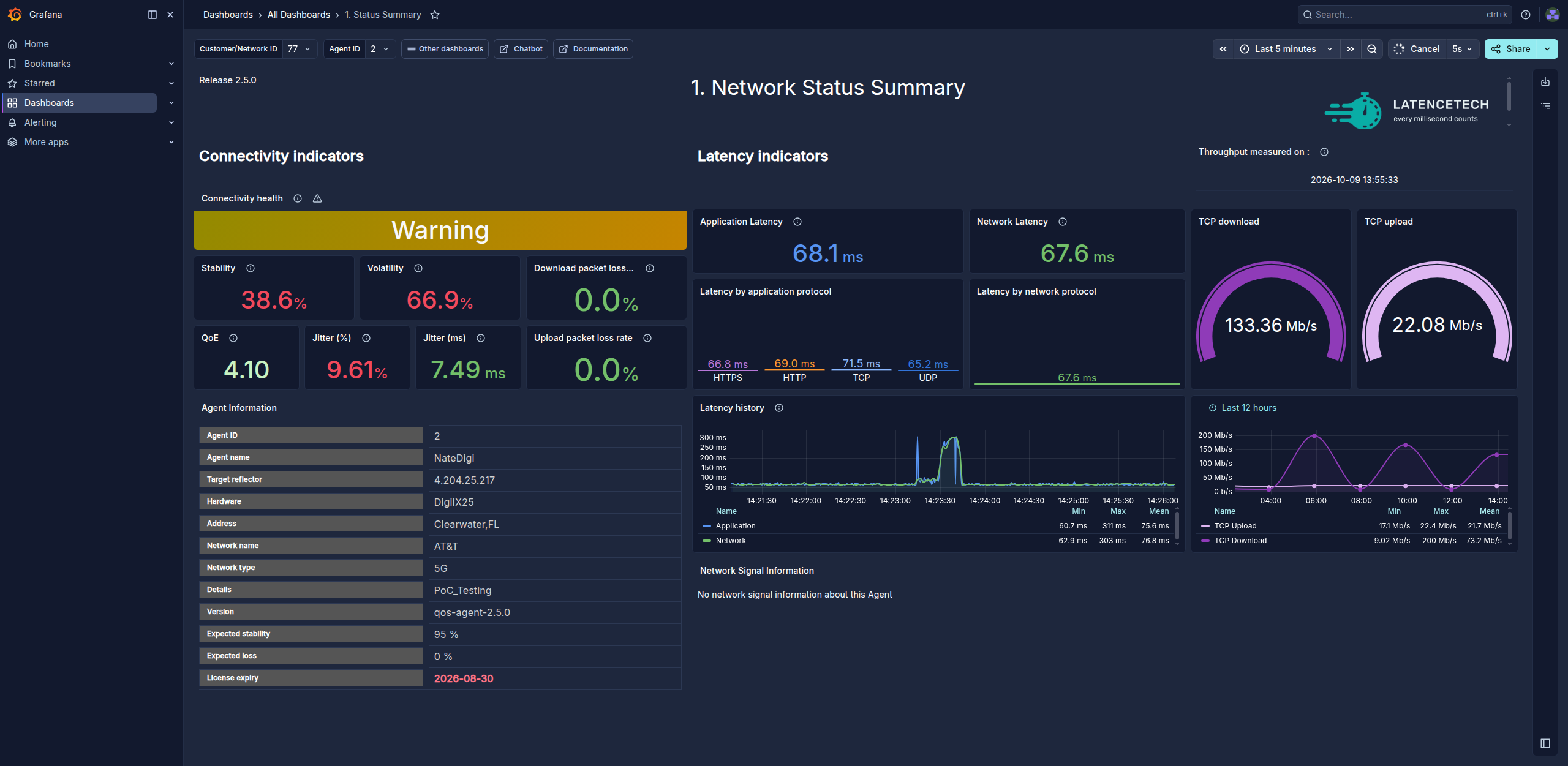
In the LatenceTech dashboard. The agent should appear under your customer ID, labelled with the LTI_agent_name and site metadata you configured, within a few minutes of starting.
https://dashboard.latence.ca/
Troubleshooting
| Symptom |
Cause |
Resolution |
[ERROR] LTI_agent_id is not set (or LTI_reflector, LTI_license_key) |
A mandatory variable is empty in /lti/env.sh |
Set it as shown in step 2. Check for a later duplicate assignment overriding it |
[ERROR] Missing --add-host msgbus.latence.ca:"ANALYZER_HOST_IP" |
msgbus.latence.ca is not in the container's /etc/hosts |
Add the analyzer IP as shown in step 3 |
[ERROR] LTI_license_key is not valid |
Wrong key, expired license, or agent count exceeded |
Check the expiry reported at startup. Contact support@latencetech.com |
Error in publisher during Kafka init: Invalid value "null" for configuration property "security.protocol" |
The LTI_kafka_* variables were never loaded — env.sh was not sourced |
Start the agent with /lti/bin/start_services.sh, which sources env.sh itself. Do not start the individual binaries in /lti/bin/ directly |
Connection failed: Operation timed out in app.http.log / app.https.log |
The reflector is unreachable |
Verify the device has Internet access, that LTI_reflector is correct, and that the high-numbered outbound ports are not blocked upstream |
| Agent starts but does not appear in the dashboard |
Analyzer unreachable, or wrong customer/agent ID |
Check app.publisher.log; verify /etc/hosts, LTI_customer_id and LTI_agent_id |
| A service repeatedly restarts in its log |
launch_app.sh relaunches crashed probes with an exponentially increasing delay, giving up after 15 attempts |
Collect the relevant /lti/log/app.*.log file and contact support@latencetech.com |
| Container will not start / not enough space |
Insufficient free space in /opt/ |
Confirm with df -h; remove the tarball after container create |
Deploying the QoS Agent at scale through Digi Remote Manager
The steps above configure one device by hand. To deploy the agent across a fleet, use the Templates feature in Digi Remote Manager.
Prerequisites
-
A premier or Digi360 license/account in Digi RM
-
The Containers service enabled in your Digi RM account (SKU DIGI-RM-PRM-CS), with a license assigned to each device that will run the container
-
Devices running DAL OS 26.2.148.165 or newer, added to Digi RM and in the same group and device type
-
A customized container tarball (see Handling per-device values across a fleet below)
Handling per-device values across a fleet
LTI_agent_id must be unique per agent, and LatenceTech issues these IDs as part of your license (the license also caps how many agents may report). That means a single container image cannot simply be pushed unmodified to every device. There are two practical approaches.
Option A — one container image per device
Repeat steps 1–3 for each device, producing a separate tarball with that device's LTI_agent_id, and upload each one to its own Configurations template. This is the simplest approach and needs no changes to the container, which makes it a good fit for the agent counts a typical license permits.
Give each tarball a distinct filename, and remember that the container Name in Digi RM must match the .tgz filename exactly. Note that the container name is also what appears in the device configuration, so using per-device filenames means the device configuration differs per device too.
Option B — one shared container image plus a per-device override file
For larger fleets, keep a single container image for every device and store only the per-device values on each device's own filesystem, outside the container. DAL OS can bind-mount a host directory into a container, so the agent can read an override file that is not part of the image.
-
Once, before distributing the image, append this line to the very end of /lti/env.sh — after the Publisher Metadata block, so the override wins over everything above it:
[ -f /mnt/latencetech/site.env ] && source /mnt/latencetech/site.env
-
Mount a host directory into the container. Leading slashes are omitted in these settings:
> config
(config)> add system container arm64_qos_agent system_dirs end
(config)> system container arm64_qos_agent system_dirs 0 host_directory "opt/latencetech"
(config)> system container arm64_qos_agent system_dirs 0 container_directory "mnt/latencetech"
(config)> validate
(config)> save
-
On each device, place a small /opt/latencetech/site.env containing only that device's values:
export LTI_agent_id=7
export LTI_license_key=YOUR-LICENSE-KEY
export LTI_agent_name=IX25060123292385
export LTI_agent_address=City,State
This file can be copied with SCP, or pushed to devices from Digi RM.
Because the override file lives in /opt/ on the host rather than inside the container, it survives re-creating or upgrading the container, and the same tarball and configuration template can be used for every device in the fleet.
Two caveats:
-
Mounted directories must be accessible to an unprivileged user, so the directory and file have to be world-readable. The file contains your license key, so consider whether that is acceptable in your environment before choosing this approach.
-
Setting LTI_agent_name to the device's serial number (as shown above) makes each agent easy to identify in the LatenceTech dashboard and to correlate with the device in Digi RM.
Walkthrough
-
Create a Configurations template. In Digi RM, go to Configuration and click Create. Name the template and select the group, device type and firmware version for your devices. Click Continue.
-
Import the settings. In the Settings step, click Import from device, select a device you have already configured using the steps above, and click Save.
-
Add the container. On the Containers tab, click the + icon, then the upload icon, and upload your customized arm64_qos_agent.tgz. Set the container Name to exactly the same name as the .tgz file — this is required, otherwise the container file and its configuration settings will not be set up correctly on the device. Version, Device Type and Firmware Version are optional; leaving the latter two blank allows the container to be used in any template. Click Save.
-
Confirm the container starts automatically. If you imported the settings from a device configured with the steps above, the template already carries start_on_boot true and args "-p /lti/bin/start_services.sh", so remediated devices start the agent on their own — verify these are present on the Settings tab under System → Containers.
-
Enable automation. Continue through the template setup and, under the Automation step, enable Enable Scanning and Remediate so Digi RM brings target devices into line with the template.
-
Scan and remediate. Either wait for the scheduled scan, or select the template on the Configurations page, click the Actions drop-down, and select Scan Now. Check the Configuration Scan History tab on each device's details page to confirm the configuration and container were applied.
-
Verify. Confirm each agent is reporting in the LatenceTech dashboard, and check the device's system log in Digi RM (show log) for container output.
Monitoring the status of your containers
The status and runtime state of each configured container on the device is tracked in Digi Remote Manager as datastream metrics. These metrics can be viewed under the Metrics tab for the device, or on the Data Streams page, where each metric can be opened to view its history.
Alerting on changes in container status
Any of these container datastream metrics can be monitored and alerted on if the state changes, or if it changes by a configured amount over a period of time — for example, an email notification when the container's status changes from running to stopped. See the Digi Remote Manager User Guide for details on setting up alerts.
Related articles
Last updated:
Oct 12, 2026