Introduction
On Digi Remote Manager, you can manually run a speed test from the device dashboard.
In some scenarios, automating this process can be beneficial. This can be achieved by creating an automation that uses an Data Service Request command, following the steps outlined below.
Prerequisites
A full Digi Remote Manager license is required.
Issue / Question
How can I automate a speed test on Digi Remote Manager?
Solution
Step 1: Test the Command via API Explorer
- Navigate to API Explorer.
- Run the following request once to verify functionality:
<sci_request version="1.0">

  <data_service>

    <targets>

      <device id="00000000-00000000-0040FFFF-FF0FF720" />

    </targets>

   <requests>

     <device_request target_name="builtin/speedtest">
    </device_request>

   </requests>

  </data_service>

</sci_request>
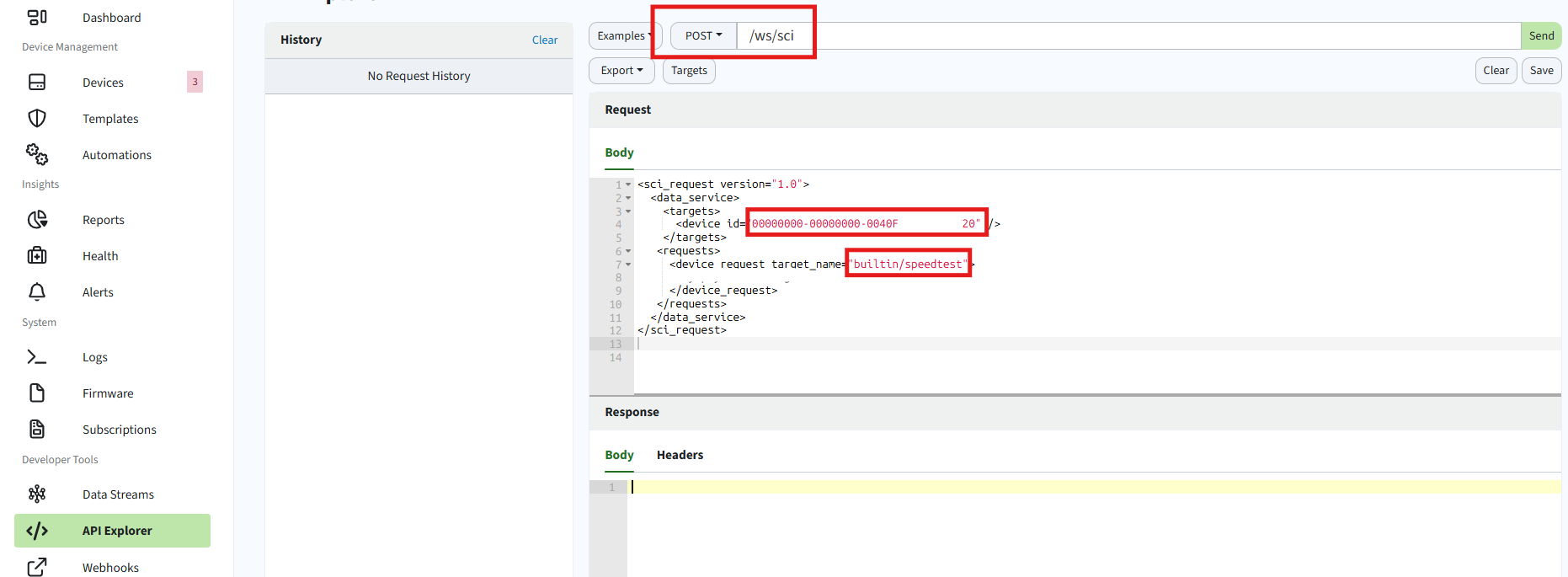
-
Click Send. You should see a response indicating the request was sent successfully:
.png?lang=en-US)
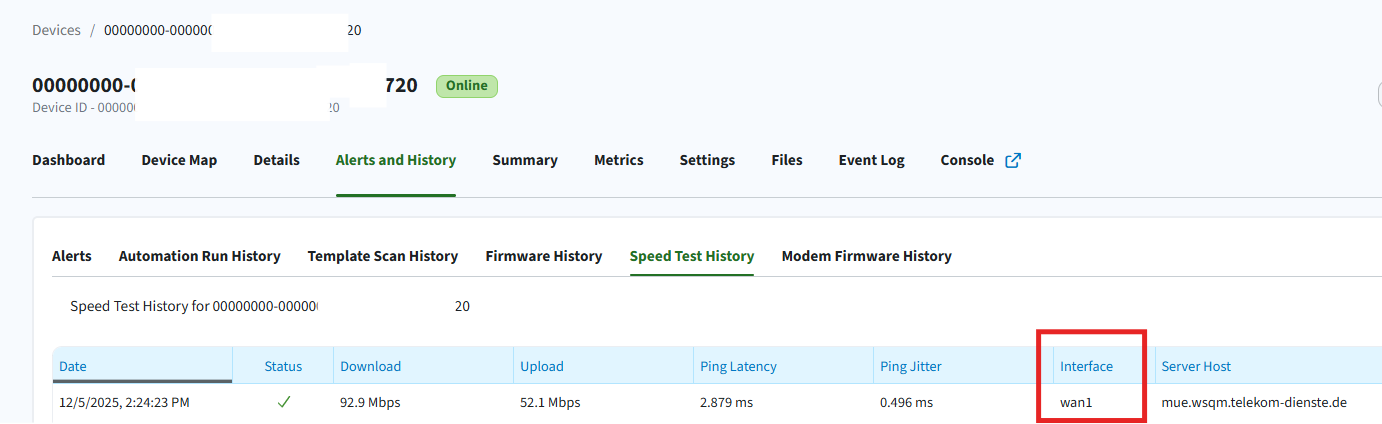
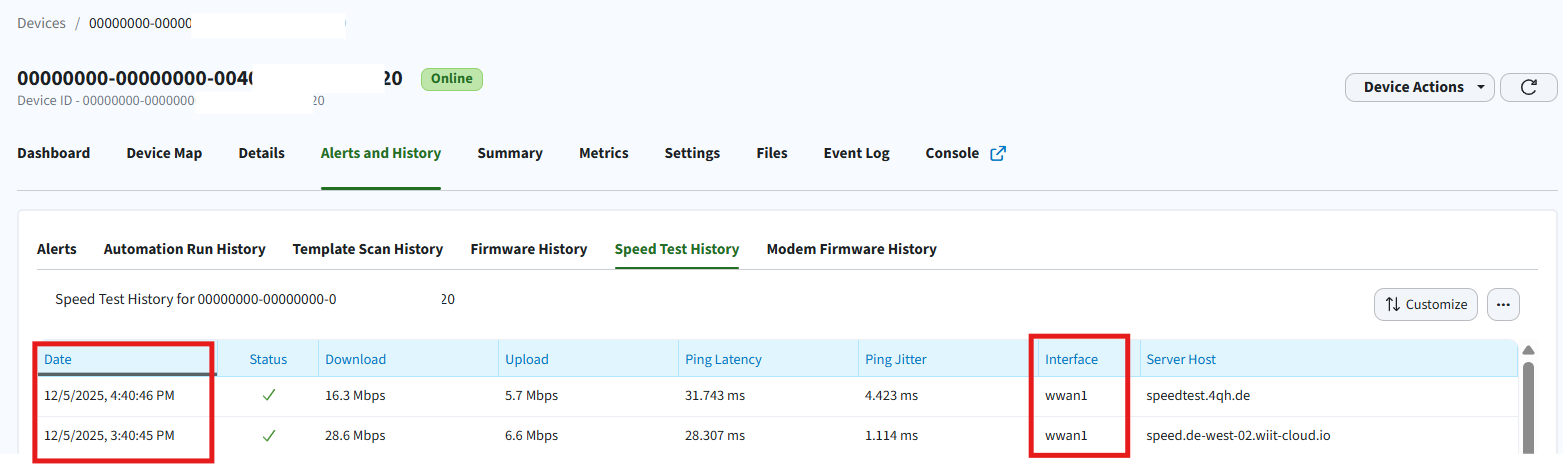
To view the speed test results, navigate to Device Details > Alert and history > Speed Test History:
Note:
By default, the speed test runs on the primary interface.
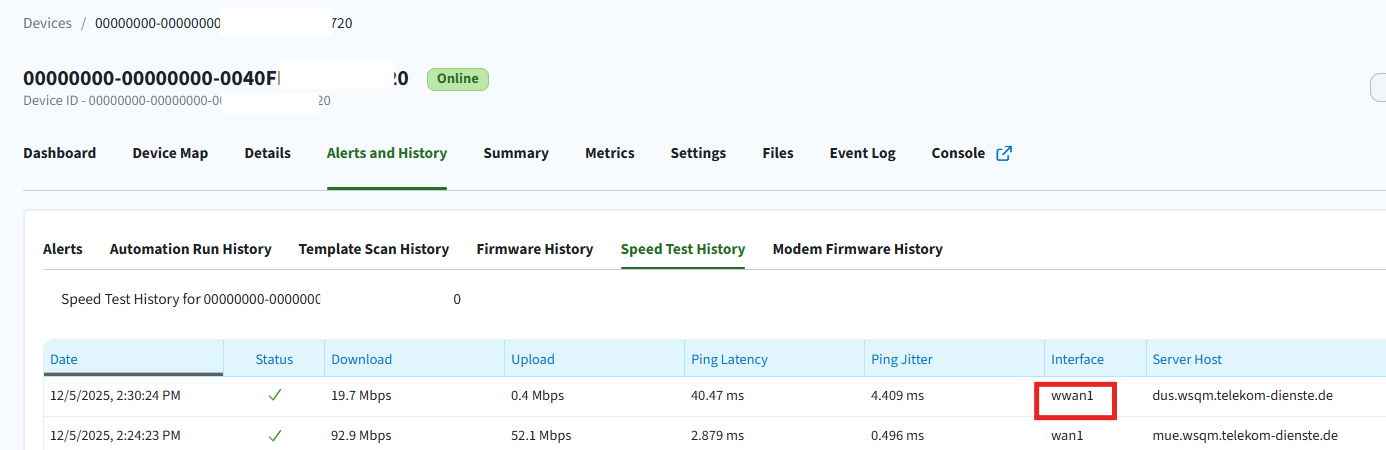
To target a specific interface, include a payload in the request. For example, to run the test on the cellular interface (wwan1):
{"interface": "wwan1"}
.png?lang=en-US)
After execution, you can confirm the selected interface in the Speed Test History tab, where the interface will be shown as wwan1 instead of the default wan1:
Step 2: Create an Automation Using Data Service Request
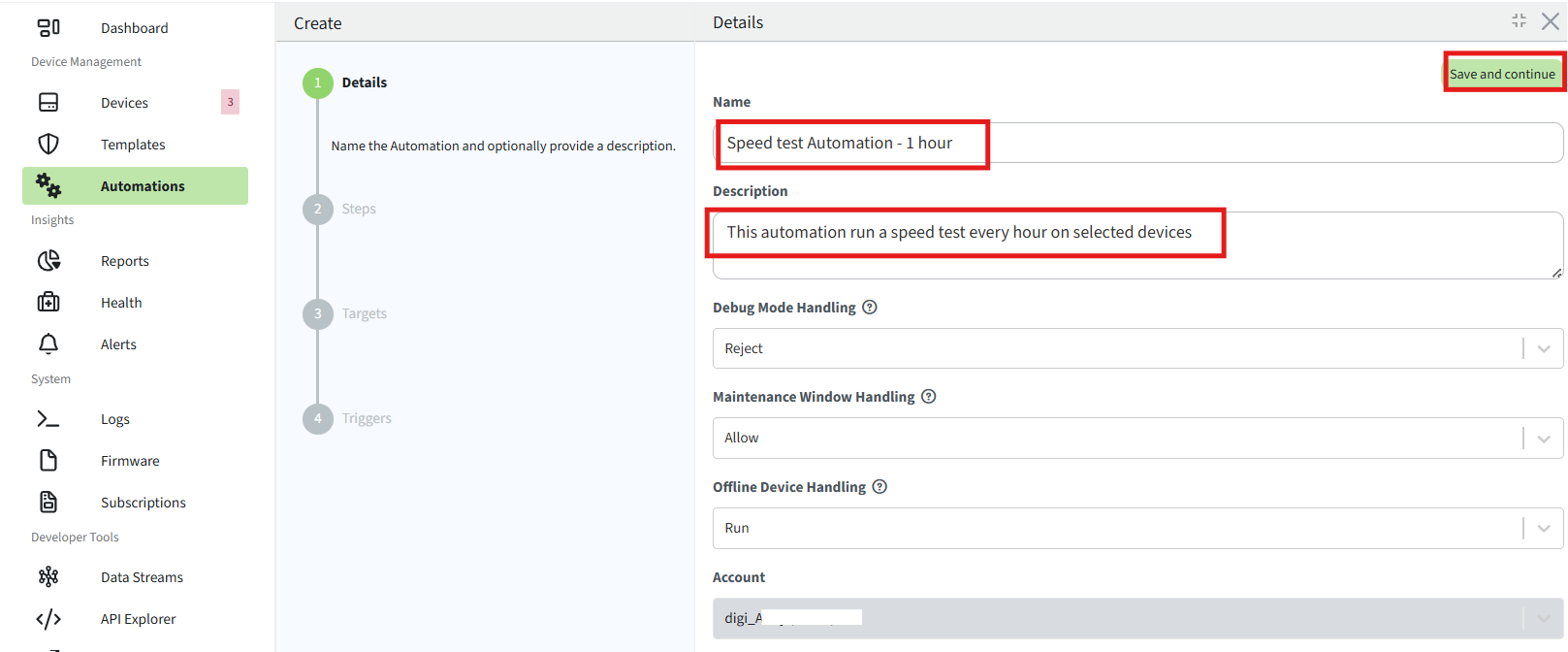
- Navigate to the Automations section and click Create.
- Set a name and description for the automation:
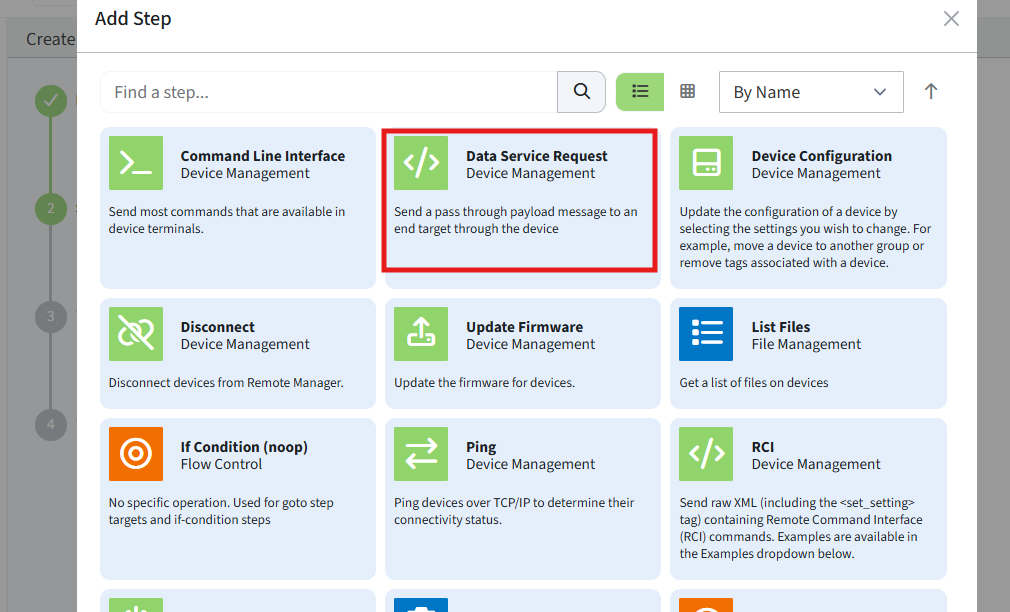
- Remove the default Ping step. Click + to add a new step and select Data Service Request as the step type:
- Configure the step:
- Target Name:
builtin/speedtest
- Optional Payload: e.g.,
{"interface": "wwan1"} 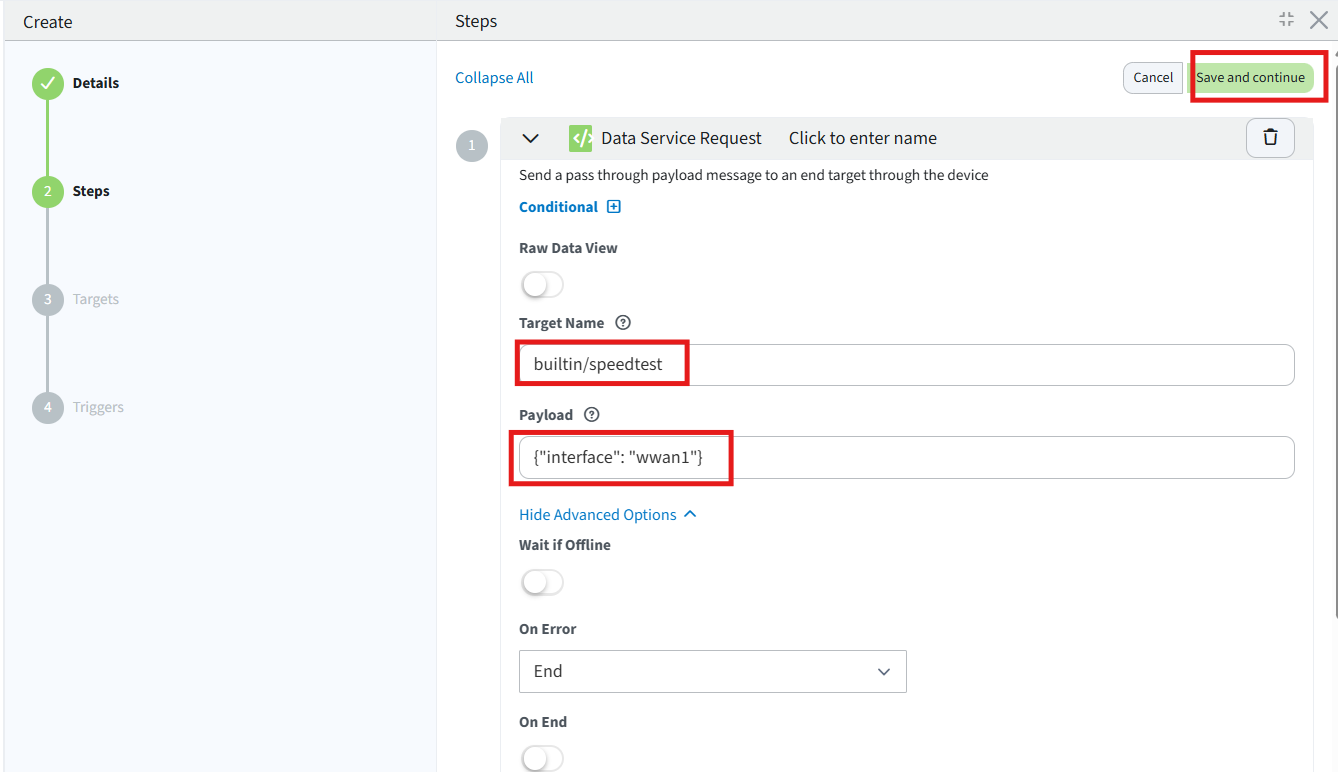
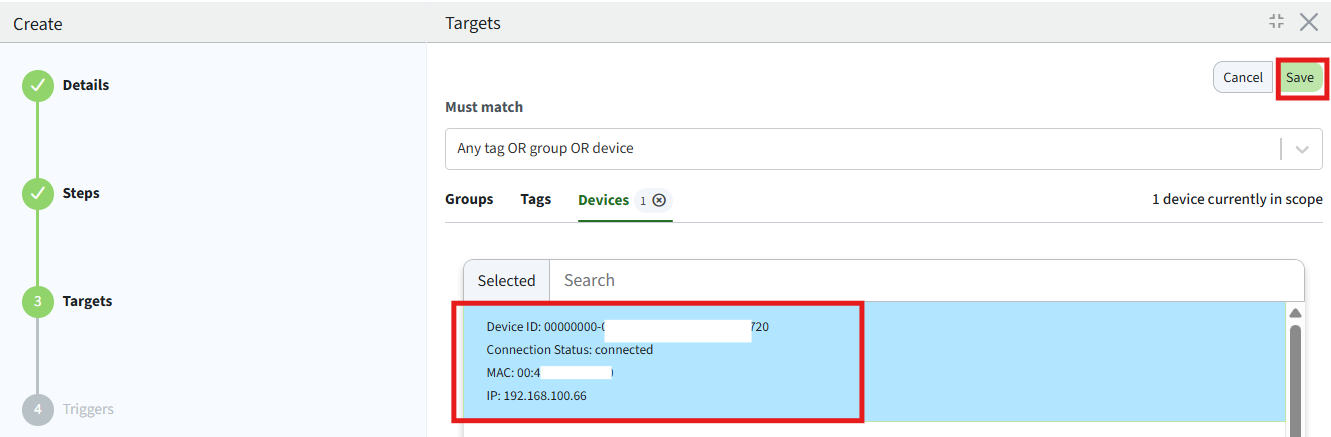
- Select the device(s) to apply the automation:
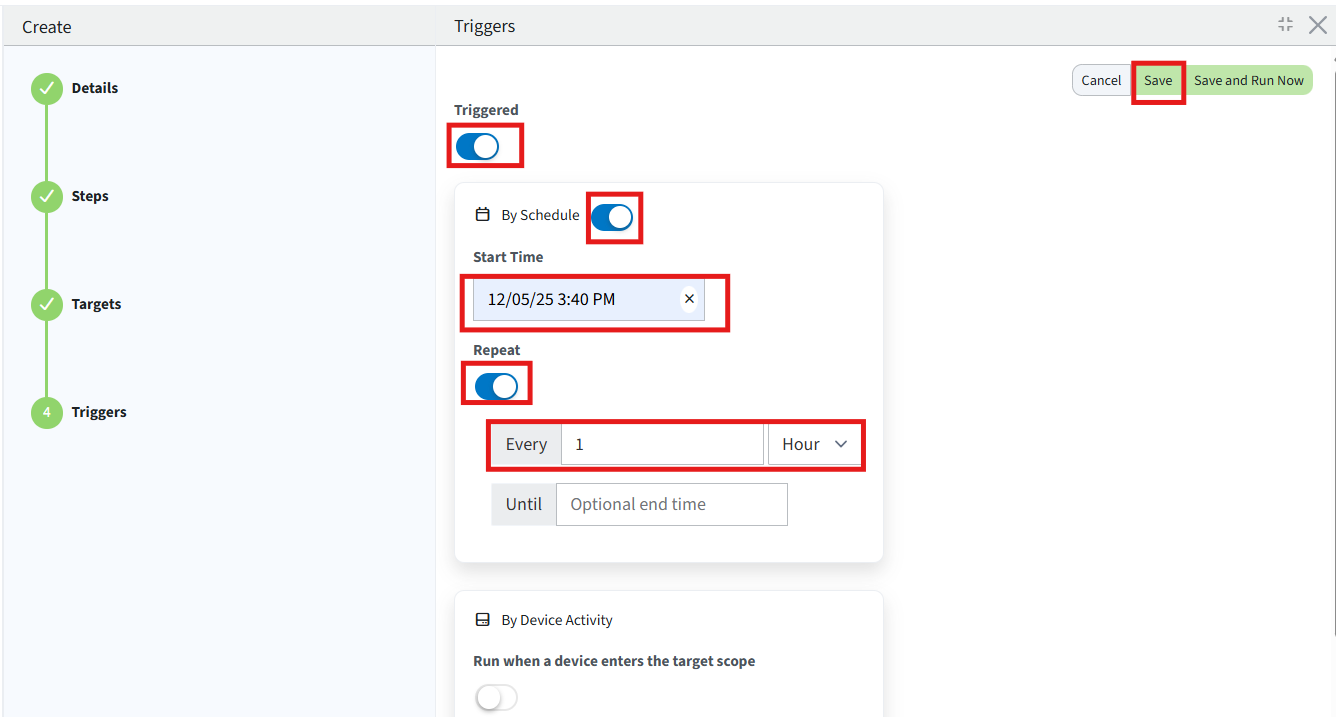
- Define the schedule for the automation (e.g., every hour):
Tip:
You can also run it immediately by selecting Save and nun now to verify successful execution.
Result
With this automation configured, a speed test will run on the specified device at the defined interval (on the default interface or the specified one if provided):
Last updated:
Dec 05, 2025